WinStudio
Forms in Mongoose can easily be resized by the end user. Users can drag sides or corners to stretch or shrink forms, both horizontally and vertically. Normally, this just means that the form itself can be made smaller or larger without affecting any of the components on the form.
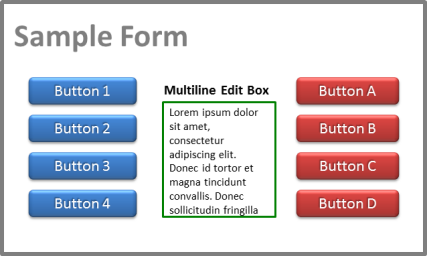
However, this is not always desirable. There might be components that you want to either move or resize if the form itself is resized. Consider this example: Suppose you have a form that is created as a fairly small form, such as this:
Now suppose you want to design this form so that the user can expand the multiline edit box without:
This means that the red buttons will have to move out of the way.
So, after the user resizes the form, it might look like this:
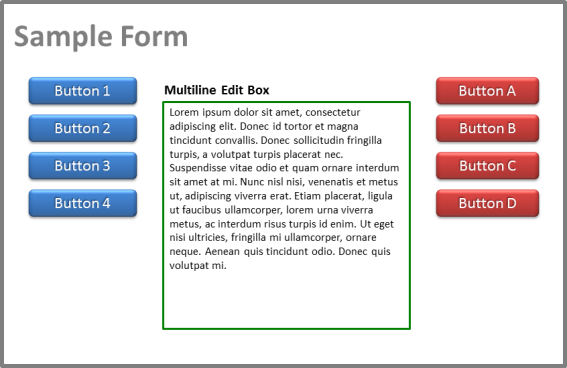
Notice that, in the expanded view of the form:
WinStudio makes changes like this possible with a set of properties called the "glue properties." In essence, they make it possible to anchor, or "glue", the various sides of a component to one side of a form (or other container). Then, when the side of the form that that particular side of the component is "glued to" moves, the side of the component either moves with it—or doesn't.
NOTE: Although we are talking only about forms in this discussion, everything applies also to resizable containers within a form.
One challenge in using the glue properties is to understand that, when we talk about gluing the sides of a component (or not gluing them), it is always with reference to either the right side of the form or the bottom of the form. This diagram should help:
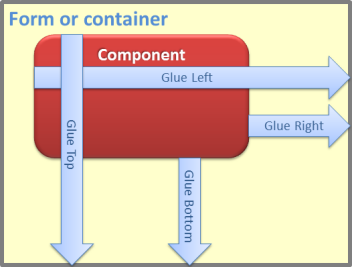
So, for example, if we set the Glue RIght property to True, then we are telling WinStudio to make sure that the right side of the component maintains the exact same relative position with respect to the right side of the form. That means that, if the user then moves the right side of the form to the right, then the right side of the component moves an equal distance to the right.
But what about the left side of the component? Well, if we have also set the Glue Left property to True, we are telling WinStudio to also move the left side of the component if the right side of the form is moved. So, in this case, it has the effect of moving the entire component to the right, while maintaining its size and its position relative to the right side of the form.
If, on the other hand, we set the Glue Left property to False, then we are telling WinStudio to leave the left side of the component where it is, no matter whether we resize the form. In this case, moving the right side of the form has the effect of stretching the component horizontally—or shrinking it, depending on what direction we move the right side of the form.
Similar principles apply to the Glue Bottom property and the Glue Top property.
As a guide to using the glue properties to determine how a component behaves when a form is resized, use this table:
| To do this: | Set these properties: |
Leave the component where it is, without changing its size or position in any way |
All glue properties = False |
Allow a component to stretch or shrink horizontally NOTE: In this case, the left side maintains its original position. |
Glue Left = False Glue Right = True |
Allow a component to stretch or shrink vertically NOTE: In this case, the top maintains its original position. |
Glue Top = False Glue Bottom = True |
Move a component left or right, maintaining its position relative to the right side of the form |
Glue Left = True Glue Right = True |
Move a component up or down, maintaining its position relative to the bottom of the form |
Glue Top = True Glue Bottom = True |
Align Components with Each Other
Lock the Size or Position of a Component
Move or Resize with Snap-to-Grid