Phase 3: Sort into outbound containers

To complete sortation:

  1. Select the Outbound Menu from the RF device Main menu. The Outbound Menu OBM screen is displayed.
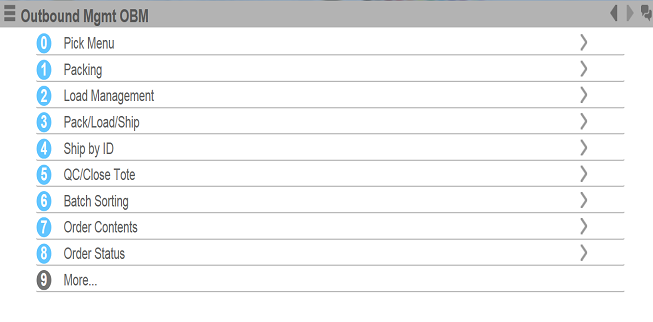
    Outbound Mgmt OBM screen
  2. Select Batch Sorting. The Batch Sorting BSM screen is displayed.
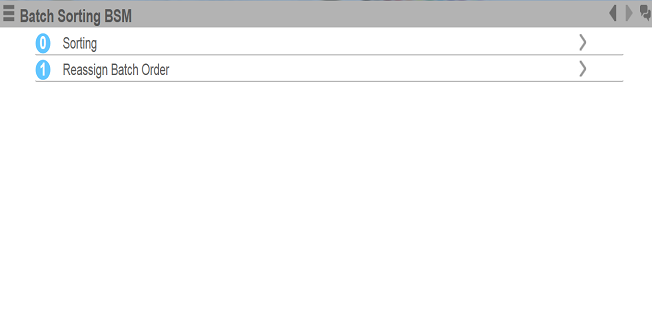
    Batch Sorting BSM Menu
  3. Select Sorting. The Batch Sort BAP01 screen is displayed.
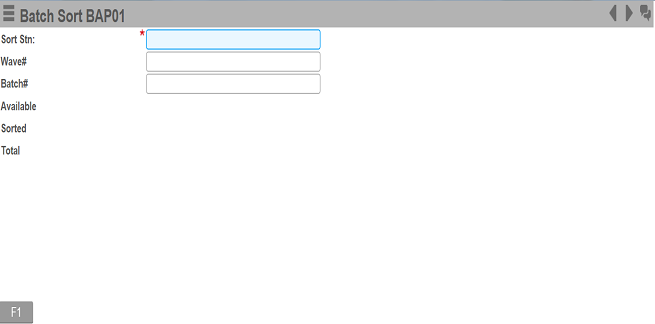
    Batch Sort BAP01
  4. Specify the Sort Station and press Enter. The wave and batch order summary information is displayed.
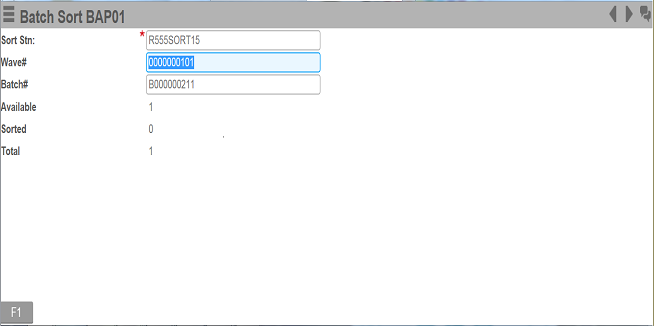
    Batch Sort BAP01 Screen 2
  5. To accept the Commit screen prompt, press Enter. The Sort Items (BP04) screen is displayed.
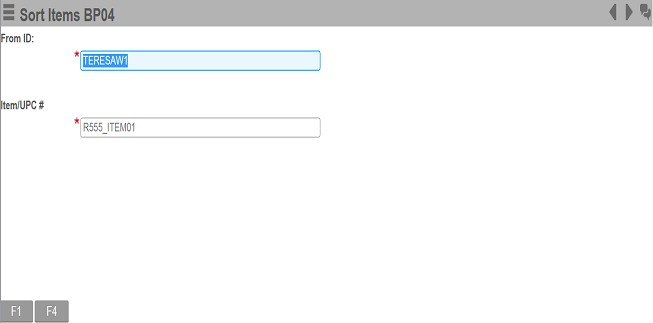
    Sort Items BP04
  6. Specify or scan the From ID and Item number; press Enter. The Batch Sort screen is displayed.
    Note: This screen is displayed only if:
    • the SORTBYSHELFLIFE parameter is enabled on the System Settings screen.
    • The shelf-life is specified for the shipment order.
  7. Verify the shelf life and minimum date.
    Note: 
    • The shelf-life value is populated from the Shelf Life field of the SO Detail 2 tab on the Shipment Detail screen.
    • The application calculates the minimum date based on the Manufacturing Date and Expiration Date fields on the Lottables tab of the Shipment Detail screen. The past date is considered as manufacture date, and the future date is considered as expiration date.
  8. Press Enter. The Sort Items BP07 screen with total information is displayed.
    • The total information is a breakdown of the original order quantities for the item being sorted.
    • The displayed Master (EA), Inner (IP), and Case (CA) Unit of Measure values displayed reflect the Pack Key Unit of Measure values.
    • You can edit a displayed Unit of Measure value. The system validates any adjusted values with the Pack values for the item.
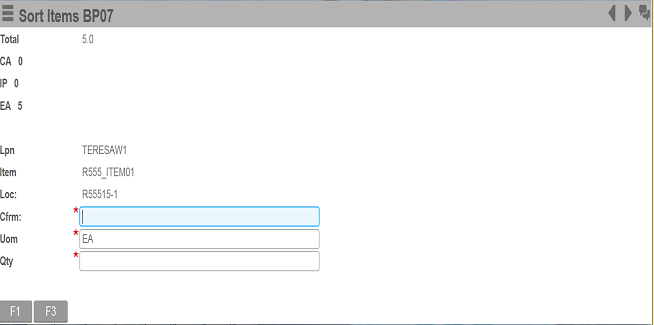
    Sort Items BP07

    After you specify the From ID and Item number, and press Enter, the system checks if any original orders for the item have lottable values. See, Sorting orders for an item with lottable values.

  9. Confirm the sort location and quantity by specifying the applicable values into the Cfrm and Qty fields; press Enter.

    The first time an item is placed into the sort location, the Enter Drop ID BP08 screen is displayed. See, Phase 4: Assigning product to outbound containers.