Enhanced search
The search includes all primary records, such as assets, service requests, work orders, CDR applications, users, employees, contacts, and addresses.
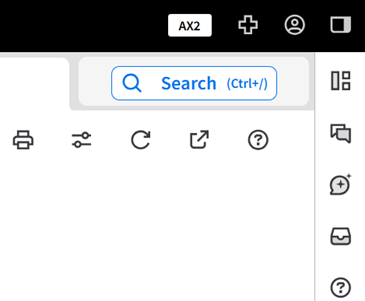
The button is shown in the top right corner of the application window.
Using enhanced search
To use the enhanced search tool, click in the top right corner of the application window.
When you click , the Search Results window is shown. The blank Search Results window has a single search field.
When you start typing in the search field, records that match the search terms are shown below it. The enhanced search tool uses a fuzzy search, and not all fields in all records are included in the search. You can improve your search results by entering more information in the search field.
AI mode
The enhanced search tool includes an optional AI mode that searches using natural language processing. The AI mode can be enabled or disabled so the large language model (LLM) isn't always used to search.
To use the AI mode, turn on the switch in the Search Results window.
Search results
The search results are grouped into categories. The first category, , includes menu items that match the search terms, such as the Create Work Order form.
See Form codes.
The categories after group the search results based on the record types, such as assets, employees, service requests, and building permits. You can click an item in the results list to open it, or you can use the buttons in the Search Results window to work with the search results.
This table describes the buttons in the Search Results window.
| Button | Description |
|---|---|
|
|
Used to filter the search results.
The Advanced Filter window is shown when you click . You can filter the results by record type, last updated date, the employee who last changed the record, or the employee the record is assigned to. |
|
|
Shows summary information about a record, such as the asset, activity, and status of a work order. |
|
|
Used to perform actions on a record. The options in the action menu depend on the record type. For example, the action menu for an asset includes options such as creating an asset inspection, creating a work order, or submitting a service request. |


