Calling the DetailPageGenerate service

In the Rest Services, the DetailPageGenerate service is used to generate mobile detail pages. In an on-premises environment you can generate mobile detail pages by calling this service from your web browser.

Note: The default format for Rest Services requests and responses is JSON. JSON is supported in Chrome, but other browsers may not show it correctly. For testing in browsers other than Chrome, we recommend changing the format to XML. To change the format, add format=xml to your URL's query string, as shown in the examples below. Changing the format does not affect the data that is returned or the detail page generation.
  1. Use the authentication service to log in to Rest Services.
    To call the authentication service, open a web browser and enter the URL of your Rest Services followed by /api/auth. Then enter a valid Infor Operations and Regulations user name and password in the query string, as in this example:

    http://server/rest services/api/auth?UserName=username&Password=password&format=xml

    We recommend that you also include the Mobile profile ID when calling the authentication service. The profile ID is hard-coded, so it is the same for all Rest Services sites. The profile ID is required to generate descriptors properly. To include it in the call to the authentication service, follow this example:

    http://server/rest services/api/auth?UserName=username&Password=password&ProfileId=47C54A79-B5E9-4FAA-8003-6B75411C7A32&format=xml

  2. Open a new tab in your browser, leaving the first tab open.
    Opening a new tab ensures that you will remain logged in to the Rest Services.
    Note: At any time, you can confirm that you are still logged in by entering this URL:

    http://server/rest services/api/auth/session?format=xml

  3. To call the DetailPageGenerate service, enter the path api/core/detailpage/generate after your Rest Services URL, followed by the moniker of the detail that you are generating
    For example:

    http://server/rest services/api/core/detailpage/generate/moniker?format=xml

    Note: The moniker is case sensitive. Be sure to enter the exact moniker as defined for the detail page.
  4. To generate all detail pages, use this URL structure:
    http://server/rest services/api/core/detailpage/generate/all?format=xml
  5. To overwrite any existing pages, add overwrite=true to the query string, as in this example:
    http://server/rest services/api/core/detailpage/generate/all?overwrite=true&format=xml

    By default, the process skips any detail pages for which mobile details have already been generated.

  6. After generating detail pages, synchronize metadata on your mobile devices.

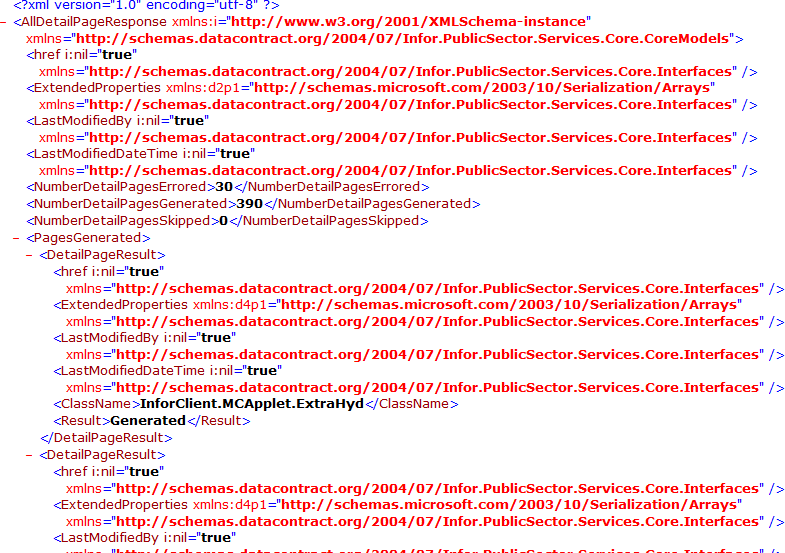
The screenshot below shows the response from the DetailPageGenerate service as it is displayed in the XML format.

  • The <NumberDetailPagesErrored>, <NumberDetailPagesGenerated>, and <NumberDetailPagesSkipped> nodes summarize the results of the process.
  • The <PagesGenerated> node lists each page that was processed in a child <DetailPageResult> node.
  • The <ClassName> node specifies the moniker of the detail page.
  • The <Result> node specifies the result.
XML response for DetailPageGenerate