Example: Adding fields
This example shows how to add an existing Infor Operations and Regulations field to a view in the mobile app. You can also add agency-defined fields.
See Adding agency fields.
In this example an agency wants to add two fields to the New Inspection page for Building Permits. This page is displayed when the user selects the button in the Application Viewer.
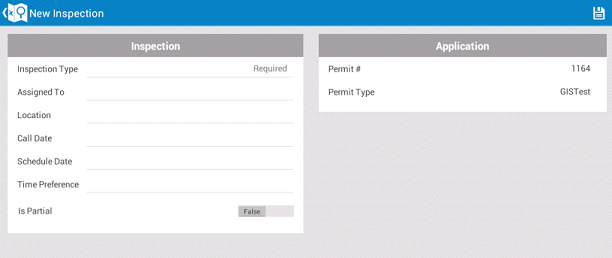
The Permit # and Permit Type fields in the group box show the application number and application type of the associated building application. The agency wants to show the primary contact and the current milestone of the application as well.
To add these fields, you must first locate the correct view in the Mobile configuration. The New Inspection page is made up of four different views. The group box, called gbAppGroup in the configuration, is a child of the CDR_Building_Inspection_New_Content view.
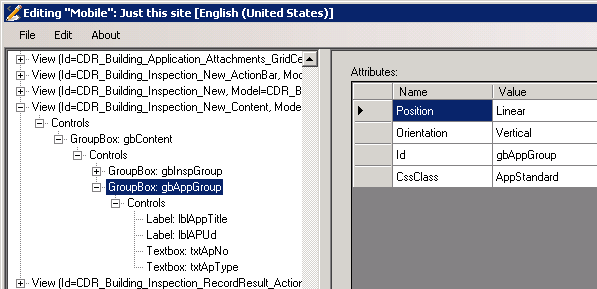
The node has a child node, which defines each control that is displayed in the group box. To add a field, you must add a child node to the node.
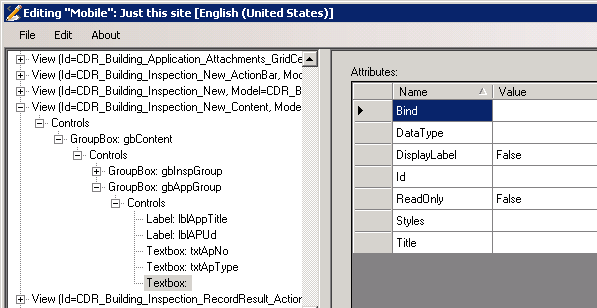
The most important attribute of the node is Bind, which specifies the property that provides the data that is displayed in the field. This must be a property of the model that the view is associated with.
To understand how the Bind attribute works, first consider the controls in the group box, which is gbInspGroup in the configuration. For example, the Bind attribute of the Inspection Type text box (txtInspType) is set to InspectionType.
If you look at the CDR_Building_Inspection model in the Mobile configuration, you will see that it does not explicitly define a property called InspectionType. This is not necessary, because any properties that are defined in a view that the model is bound to are added to the model automatically. This means that you can use any property of the associated business object without having to define it in the configuration.
The controls in the group box are more complicated, because they must be bound to properties of the building application, not the inspection. Looking again at the CDR_Building_Inspection model, one of the properties that are explicitly defined is Application. The purpose of this is to create a relationship between the CDR_Building_Inspection model and the CDR_Building_Application model.
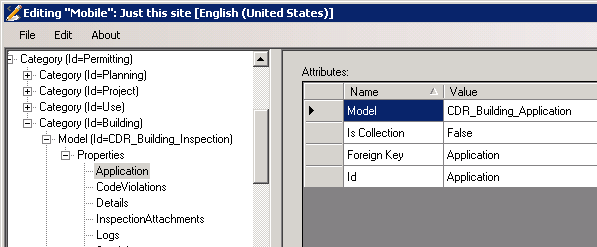
So the Application property of the CDR_Building_Inspection model can now be used to access properties of the CDR_Building_Application model.
The Primary Contact and Milestone fields are also displayed in the Building Application Viewer, so you can copy some of the information from there. In the configuration, the fields for the Application Viewer are defined in the CDR_Building_Application_RecordView_Summary view, in a group box called gbInspGroup. For example, the Bind attribute for the Primary Contact text box (txtPrimaryContact) is set to PrimaryContactName.
The CDR_Building_Application_RecordView_Summary view is associated with the CDR_Building_Application model, not CDR_Building_Inspection, so you cannot use the same value when you add the Primary Contact text box to the CDR_Building_Inspection_New_Content view. Instead, you must use the Application property of the CDR_Building_Inspection model to access to properties of the CDR_Building_Application model, using dot notation. In this case the Bind attribute is set to Application.PrimaryContactName. Similarly, the Bind attribute for the Milestone field is set to Application.ProcessState.
See Common control attributes and TextBox for information on the other attributes of the text box.