Web IDE
It combines a code editor with AI-assisted code support to help you create, review, and update formula logic.
The Web IDE is built with Angular 19 and the Monaco Editor. It includes a code-style layout with an activity bar, a tree explorer for navigating product families and events, and a bottom panel for build diagnostics. The editor supports VB.NET with IntelliSense features such as code completion, signature help, and go-to-definition.
You can use the AI Chat assistant panel to send natural language prompts for code explanation, code generation, and troubleshooting. Responses can include formatted text and code blocks that you can apply in the editor.
The Web IDE also includes a source control workflow. When you edit a formula, your changes must be committed before they are persisted and deployed. A Timeline panel provides access to the revision history.
Requirements
These are the basic requirements for using the Web IDE:
- In Operations and Regulations, these feature toggles must be enabled:
- WebIDE - AI Assisted Formula Code Editor
- Modernized User Interface Controls
- In CloudSuite Self Service Portal, the GenAI Embedded Experience feature must be enabled.
- In Infor OS, the
IPS-AdvancedConfiguratorsecurity role is required for users of the Web IDE.
Basic navigation
The Web IDE has a navigation pane to the left of the main formula workspace.
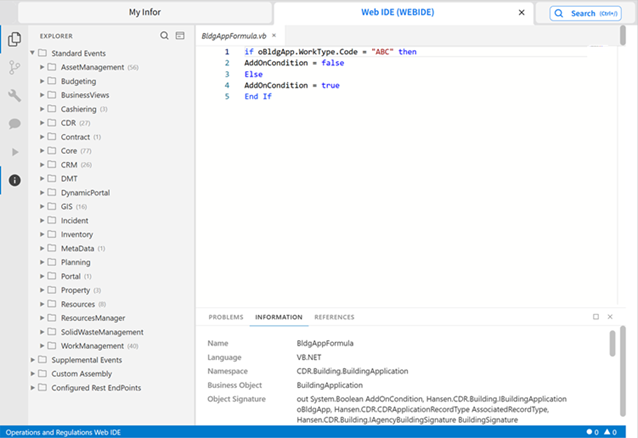
This table describes the buttons in the toolbar to the left of the navigation pane:
| Button | Description |
|---|---|

Explorer |
Opens the Explorer, which shows objects and events for which you can write formulas in a tree structure. There are three main nodes in the tree:
|

Source Control |
Shows uncommitted changes. Click to commit changes. |

Build |
Compiles the active formula or code and reports syntax validation, errors, and warnings. |

AI Chat |
Opens the AI coding assistant. |

Run and Debug |
Executes and tests formula or endpoint logic to inspect runtime behavior and troubleshoot issues. |

Information |
Toggles the bottom panel to show or hide build output, diagnostic logs, and endpoint details. |
The panel below the formula workspace has these tabs:
- Problems: Shows problems in the current formula, such as warnings and syntax errors.
- Information: Shows information about the current formula, such as the product family and business object for which the formula is written.
- References: Used to add references to agency product families.