Understanding views
This diagram shows how views are used to define the structure of the pages in the mobile app. This example shows the New Inspection page, which is displayed when you create a new inspection for a building application.
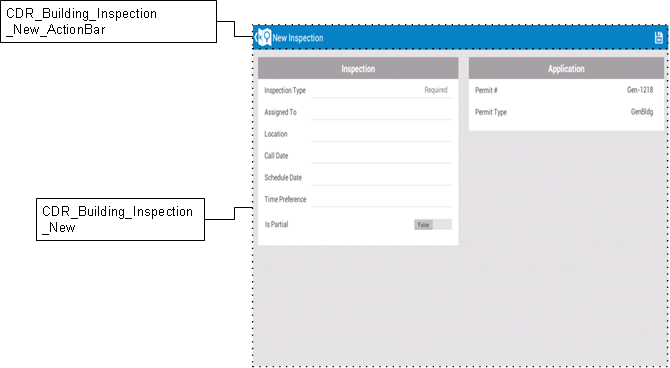
In the configuration, CDR_Building_Inspection_New is the view that defines the New Inspection page. If you look at the view in the configuration, you will see that it actually consists of two different views.
- At the top of the page is the action bar, CDR_Building_Inspection_New_ActionBar. This is specified by the ActionBar attribute on the CDR_Building_Inspection_New view. In this example, the only control in the action bar is a button, but other action bars include additional controls.
- Most of the content on this page is displayed in the CDR_Building_Inspection_New view.
The next diagram shows the main parts of the CDR_Building_Inspection_New view. All of the controls for this view are in two group boxes: panelone, which defines the Inspection panel, and paneltwo which defines the Application panel.
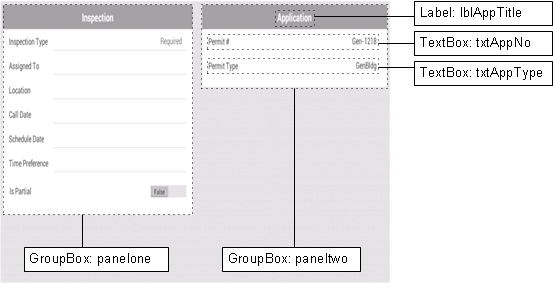
The diagram also shows some of the controls inside the paneltwo group box. There is a label called lblAppTitle and two text boxes, txtAppNo and txtAppType. The controls in the panelone group box are defined in a similar way.