Create new assignments
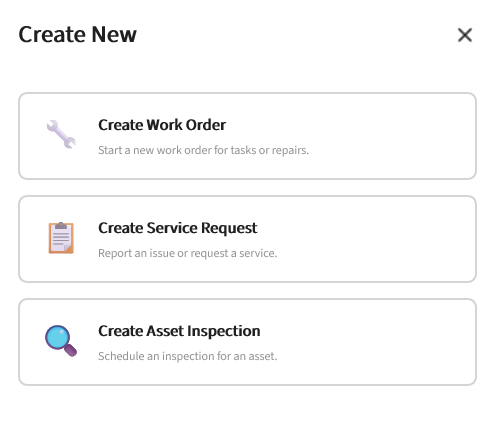
Use the option to start a work order for tasks and repairs, report an issue or request a service, or schedule an inspection for an asset.
Create Work Order
Use this option to start a new work order for tasks or repairs.
This table shows the fields that you must specify for your work order:
| Field | Description |
|---|---|
| Activity | Specify the type of work to perform. |
| Standard Work Order | The Standard Work Order is configured at the Operations and Regulations back office. Specify the details that you can apply to succeeding work orders as a template.
Select the template that is related to your work order. |
| Maintenance Type | Specify the maintenance category from an asset management perspective. |
| Problem | Specify the reason or symptom of the problem that initiated the work, using a coded description of what requires attention. |
| Priority | Specify the urgency and importance of the work order. |
| Schedule Start | Specify the planned start date and time for the work. Tap the check icon to save the specified date.
Note: The record will not appear on the list of assignments if the schedule start is not specified.
|
| Schedule Finish | Specify the planned completion date and time for the work. Tap the check icon to save the specified date. |
| Project | Specify the capital or operational project associated with the work order, which supports cost roll-up and progress tracking across multiple work orders. |
| Responsibility | Specify the organizational unit accountable for the work. |
| Asset | Specify the specific asset or component on which the work is performed. This opens the Asset Lookup, where you can search and select the asset to return to this form. |
| Address | Specify the structured physical address where the work takes place. |
| Location information | Use this option to specify the location details that supplement the Asset, Address, or Parcel fields, such as landmarks, directions, floor or room numbers, or distance from an intersection. |
| Parcel | Specify the land parcel or lot where the work occurs, usually used by municipalities or utilities that track work and costs by parcel or property ownership. |
| Assigned To | Specify the person currently responsible for executing the work order. This is assigned by default to the current user logged in to the app. |
| Comment | Use this option to include additional unstructured notes for the work order, such as clarifications, customer details, special instructions, or ad hoc updates. |
Create Service Request
Use this option to report an issue or request a service.
This table shows the fields that you must specify for your service request:
| Field | Description |
|---|---|
| Request Type | Specify the category of service request being logged. |
| Call Date | Specify the date and time when the request was received or logged. |
| Priority | Specify the urgency and importance of the work order. |
| Location | Specify the location details that supplement the Asset, Address, or Parcel fields, such as landmarks, directions, floor or room numbers, or distance from an intersection. |
| Responsibility | Specify the organizational unit or team responsible for handling the request. |
| District | Specify the geographic or administrative area within the jurisdiction used for routing and reporting. |
| Project | Specify the project or program associated with the request, typically when the service request supports a larger initiative. |
| Taken By | Specify the staff member who recorded the request. |
| Caller Comments | Specify the caller’s verbatim description of the issue. |
| Address | Specify the structured street address associated with the request. |
| Parcel | Specify the land parcel or lot ID of the property to which the request applies. |
| Property | Specify the property record that links the service request to a specific property entity. |
| Asset | Specify the specific asset related to the request. This opens the Asset Lookup, where you can search and select the asset to return to this form. |
| Contact | Specify the person to contact regarding the request, usually the caller, complainant, or account holder. |
| Request Date | Specify the official submission date of the service request. |
| Reference Number | Specify the external reference associated with the service request, such as customer reference numbers, related cases, or agency-specific identifiers beyond the primary Service Request number. |
| Source | Specify the channel through which the request was received, such as phone, email, portal, mobile app, or walk in. |
| Inspector | Specify the inspector assigned to investigate or handle the service request. |
| Schedule Date | Specify the scheduled date, and usually the time, for action on the request, such as an inspection or site visit. Tap the check icon to save the specified date.
Note: The record will not appear on the list of assignments if the schedule start is not specified.
|
| Comments | Use this option to include internal or follow-up notes related to the request, separate from the initial caller or customer narrative. |
Create Asset Inspection
Use this option to schedule an inspection for an asset.
This table shows the fields that you must specify for your asset inspection:
| Field | Description |
|---|---|
| Asset | Specify the asset record being inspected. This opens the Asset Lookup, where you can search and select the asset to return to this form. |
| Inspection Type | Specify the purpose and method of the inspection and determines how the system records observations, such as none, full-length, distance-based, or sample-based. |
| Surveyed Width | Specify the portion of the asset’s width inspected. |
| Surveyed Length | Specify the portion of the asset’s length inspected. |
| Responsibility | Specify the team or organizational unit responsible for the inspection record. |
| Priority | Specify the importance or urgency of completing the inspection. |
| Assigned To | Specify the employee who performs or performed the inspection. This is assigned by default to the current user logged in to the app. |
| Comments | Use this option to include notes related to the asset inspection, separate from structured observations or inspection logs. |