Modal screen
The Modal screen has these sections:
- Actions
- Resource Usage
- Spot Inspection: Shown if a work order has associated spot inspections.
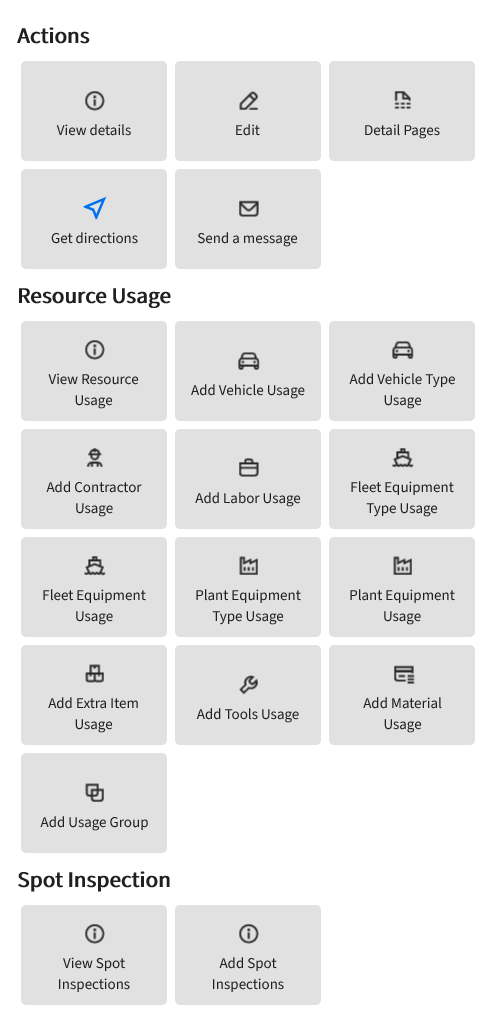
Spot Inspections are available to Work Order assignment cards, when applicable.
Actions
Under , you can view and edit your assignment details, and view the Detail Pages infoviewer.
View details
launches the record type InfoViewer, where you can view a series of widgets depending on the record type.
Work order
This table shows the widgets that are available for work orders:
| Widget | Description |
|---|---|
| Summary | Shows all details about the record. You can scroll the widget left or right to view all details. Tap the Edit icon to configure your record information. |
| Details | Shows a list of detail pages associated with the record.
Detail Pages shows additional work order attributes, custom fields, or configuration‑driven details coming from the Infor Operations and Regulations back office. You can view or edit the form‑style details of the job. |
| Resource Usage | Shows the resource usage associated with your assignment. |
| Associated Work Orders | Show other linked associated work orders. |
| Attachments | Shows the files and media captured for the Work Order. Enables quick access to photos, videos, and documents linked to the job. |
| Comments | Use this option to add comments to your record. There are several customizations you can perform, and it has HTML capabilities which allows adding of URLs. |
| Logs | Shows a time‑ordered list of structured log entries for the work order, providing a formal record of what happened and when. |
| Performance Indicators | Shows the KPIs and measurement data related to the Work Order. Shows asset or work‑order‑level performance indicators that the technician can view and, where allowed, capture or update in the field. This can include condition scores, response times, or custom metrics configured in the back office. |
| Safety Messages | Displays all safety messages associated with the work order, ensuring technicians always see critical hazards and instructions directly in the InfoViewer. |
Service request
This table shows the widgets that are available for service requests:
| Widget | Description |
|---|---|
| Summary | Shows all details about the record. You can scroll the widget left or right to view all details. Tap the Edit icon to configure your record information. |
| Resource Usage | Shows the resource usage associated with your assignment. |
| Attachments | Show the files and photos linked to the service request. You can find all documents, images, and other files attached to the service request here. |
| Comments | Use this option to add comments to your record. There are several customizations you can perform, and it has HTML capabilities which allows adding of URLs. |
| Logs | Shows a time‑ordered list of structured log entries for the request, providing a formal record of what happened and when. |
| Customers or Contacts | Shows the people related to the service request. Shows the customer or contact details associated with the service request, so technicians know who reported the issue to and who to follow up with. |
| Associated Work Orders | Work orders created from or linked to the service request. The list shows all work orders related to the service request. Users can open the InfoViewer for each work order to track the jobs created to resolve the reported issue. |
| Inspections | Inspection records related to the service request. Shows inspections scheduled or recorded against the service request. |
| Linked Service Requests | Shows other service requests connected to the record you are viewing. |
| Map | Shows the map view of the service request location. Centers the map on the location and shows the corresponding pin or marker. |
Asset inspection
This table shows the widgets that are available for asset inspections:
| Widget | Description |
|---|---|
| Summary | Shows all details about the record. You can scroll the widget left or right to view all details. Tap the Edit icon to configure your record information. |
| Resource Usage | Shows the resource usage associated with your assignment. |
| Attachments | Show the files and photos linked to the inspection. |
| Comments | Use this option to add comments to your record. There are several customizations you can perform, and it has HTML capabilities which allows adding of URLs. |
| Observations | Shows the findings recorded during the inspection. Shows the individual observation lines captured for the inspection including codes, descriptions, severity, and any required follow‑up, so inspectors can review and update what was found on site. |
| Logs | Shows a time‑ordered list of structured log entries for the inspection, providing a formal record of what happened and when. |
| Associated Service Requests | Shows service requests created from or linked to the inspection. |
| Sample Units | Units or sections inspected as part of this inspection. |
| Associated Work Orders | Work orders raised from the inspection. |
To close and resolve your assignment, tap Close Work Order, Close Service Request or Close Asset Inspection.
Edit
Use this option to update the current information of your selected record. You can update names, specify new information, change schedules and add new comments to your selected record.
Detail Pages
Use the Detail Pages InfoViewer to show all detail pages associated to your work order, asset inspection or service request. The details pages are unique to each selected record and would depend on how they are configured in Infor Operations and Regulations.
You can edit and update the details within each detail page available to your assignment.
Resource Usage
Under Resource Usage, you can view and configure all related assets to your specific assignment logged from Infor Operations and Regulations or the app.
View Resource Usage
Use the View Resource Usage InfoViewer to see all resource usage for your particular assignment.
Each resource is shown as cards where you can view all the details about that resource, edit the details by tapping the Edit icon or delete the resource card by tapping the Delete icon at the bottom of the card.
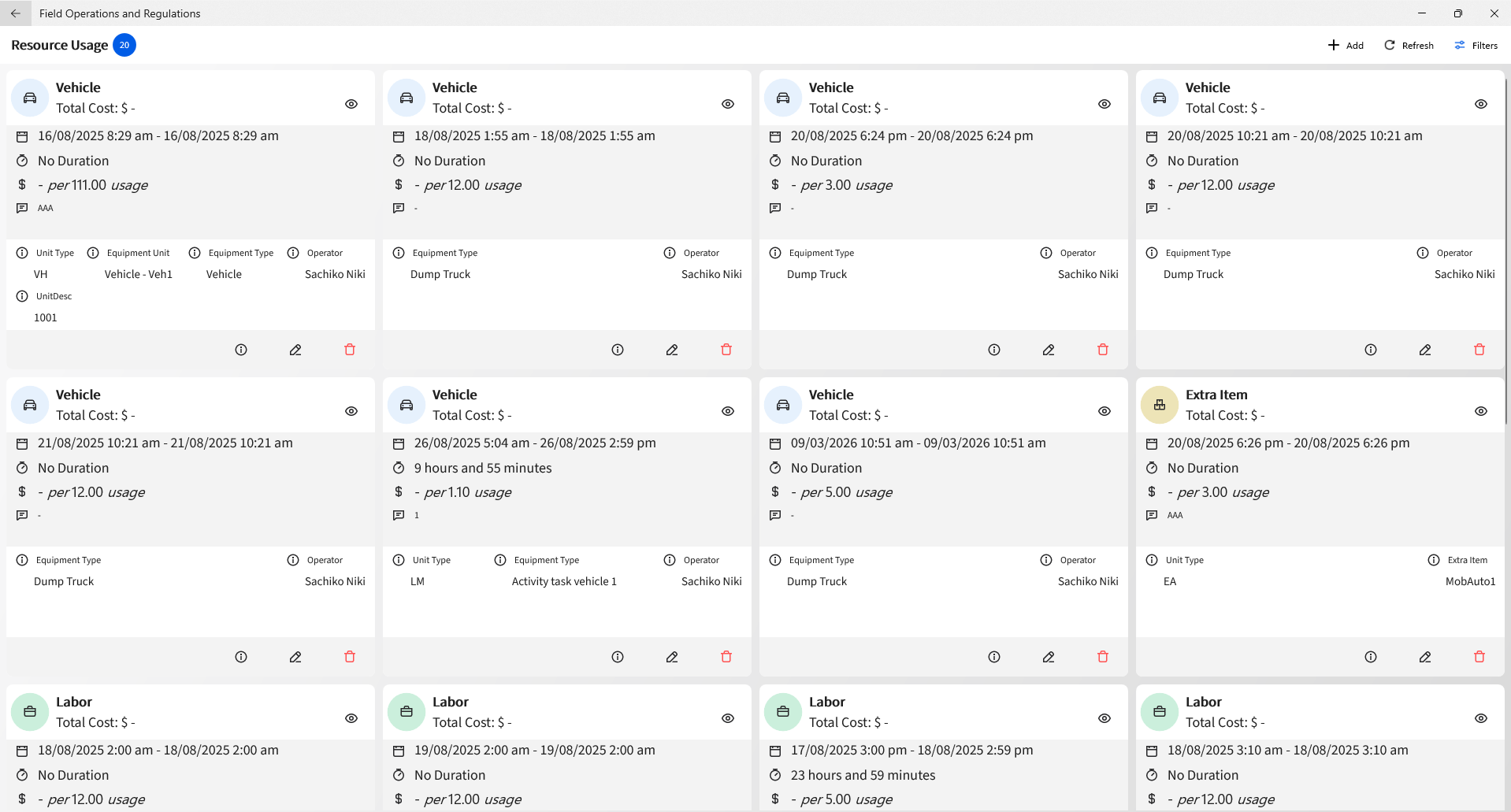
You can tap Refresh to update the list of cards and Filters to search for specific resources.
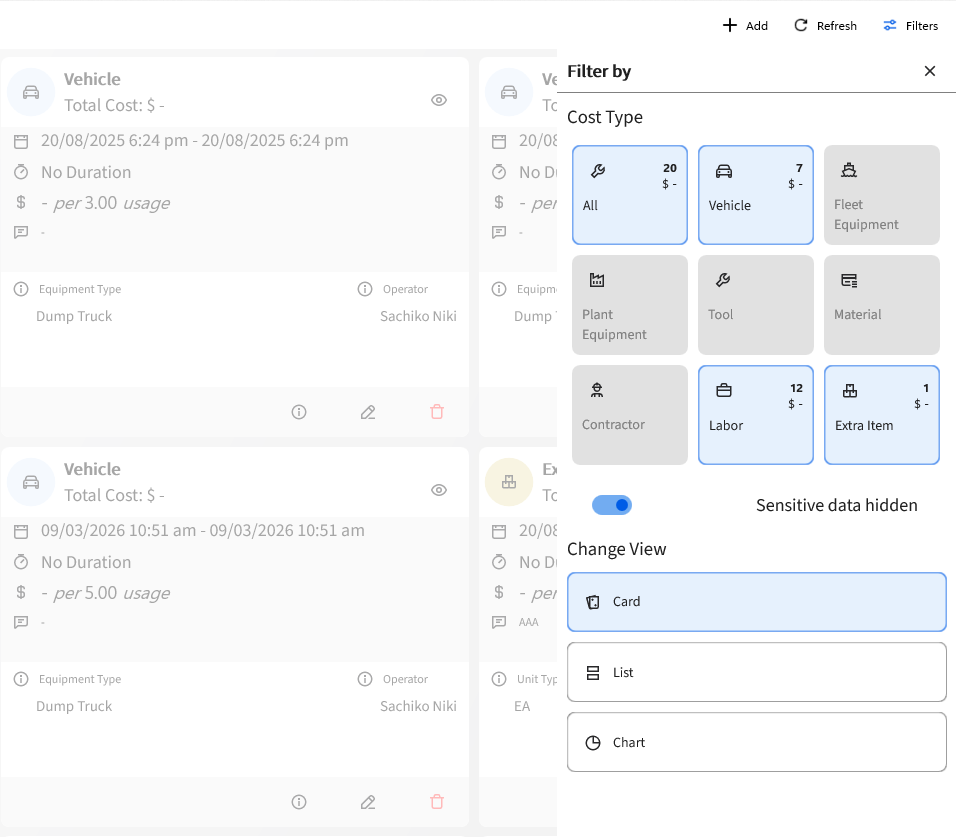
The filter shows the available resources as cards by default. You can change your view from Card view into List or Chart.
Tap + Add to add resources to your assignment.