Flyout menu
The Flyout menu shows the general configurations for the app.
The flyout menu includes these options:
- Profile: Shows you user profile.
- My Assignments: Shows your current assignments.
- Assets: Opens the asset lookup.
- Refresh Data: Updates the app with the latest data from the database.
- Pending Sync: Updates and synchronizes your work done while in offline mode.
- Settings: Used to view and update app settings.
- Logout: Logs you out of the app.
Asset Lookup
Selecting Assets shows the Asset Lookup screen. You can search for all the available assets using the search bar.
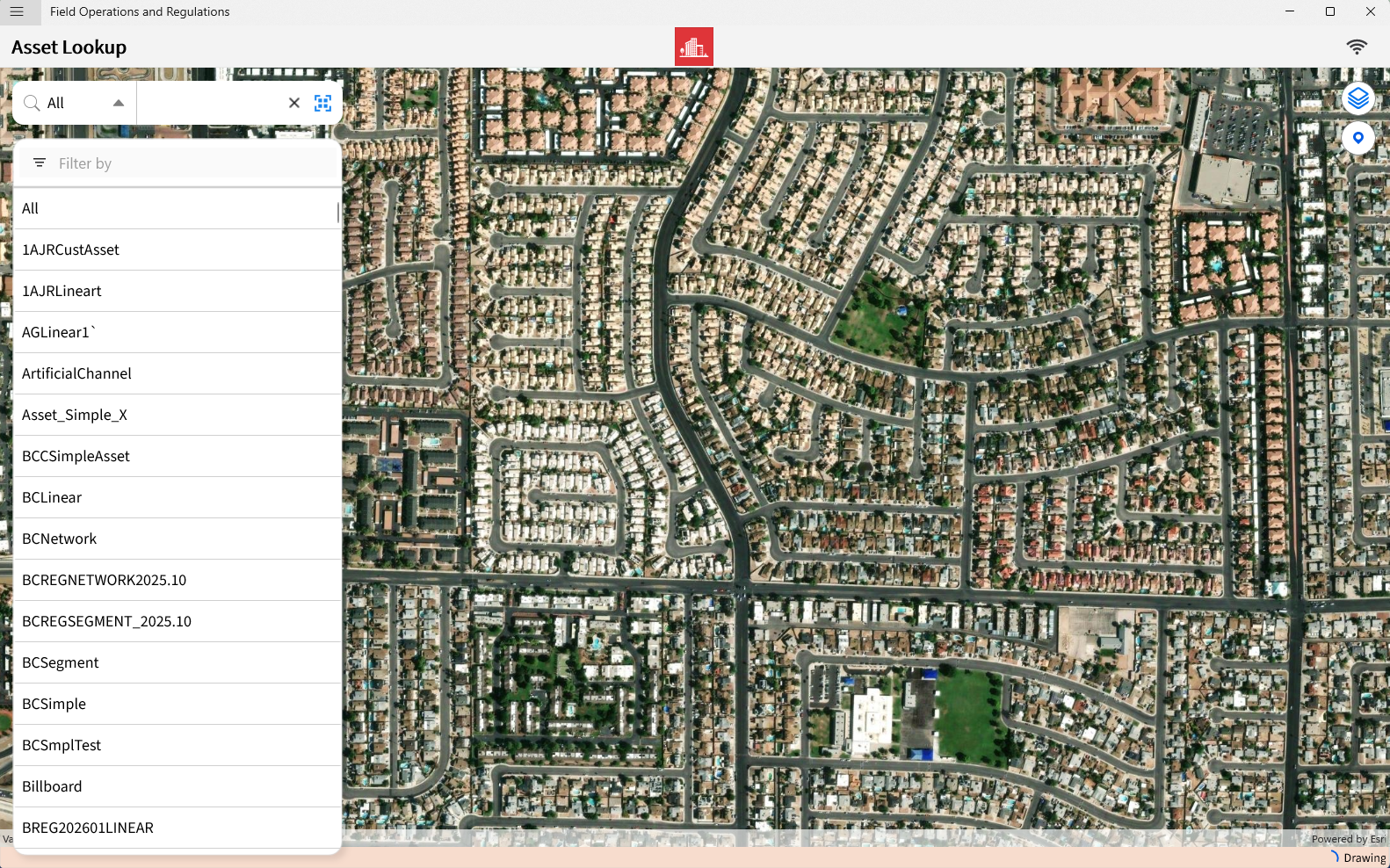
Tapping the Arrow filter shows all available asset types.

You can filter the list of assets by specifying the asset on the filter search bar.
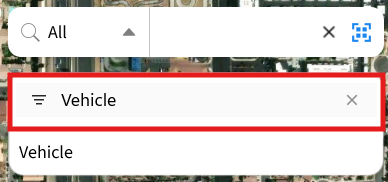
You can also directly specify the asset in the search bar. A minimum of three characters are required for the search bar to provide suggestions for your search.

Tap the QR or Bar code scanner icon on the right of the search bar to scan a QR code or Bar code of the required asset.
Pending Sync
The Pending Sync screen shows the list of records and work done while in offline mode. Working in offline mode allows the creation of assignments and proceeding with your tasks, but will not be assigned an activity, request or inspection number until you sync your data online.
Use this option to manually sync or delete your records. Select Show Completed Syncs to show the list of all synced records, or tap Refresh to refresh the list.
Settings
The Settings screen shows your basic app settings and configurations. To open this screen, tap Settings in the Flyout menu.
This table shows the available options:
| Option | Description |
|---|---|
| General | These options are available:
|
| Maps | These options are available:
Note: You can delete your cached offline maps to free up device storage.
|
| Display | Dark Mode option is simultaneous with your device setting. |
| Connectivity | Use this option to force your app into offline mode. |
| Security | Configure your camera and location permissions. |
| About | Shows the version of the app and the option to View Logs.
Tapping View Logs shows the Application Logs screen. You can view, refresh and share the logs available to your device. |