My Assignments screen
After you sign in, the My Assignments screen opens. By default, the My Assignments screen shows the map view and provides an overview of your assignments. You can see your open assignments in the map as pins reflecting the type of assignment, such as WO for work orders, SR for service requests, or AI for asset inspections.
The panel on the left side of the screen lists your open assignments shown as cards, with the default filter set to Today. You can also filter assignments by , , or .
See Assignments card.
Each assignment card includes this information:
- Record type
- Activity code for work orders; request type for service requests; or inspection type for asset inspections
- Record number
- Scheduled date and initiated date for work orders and asset inspections; and call date and schedule date for service requests
- Description
- Location or address
Note: No GIS available is displayed if there is no GIS information for the assignment.
- Priority
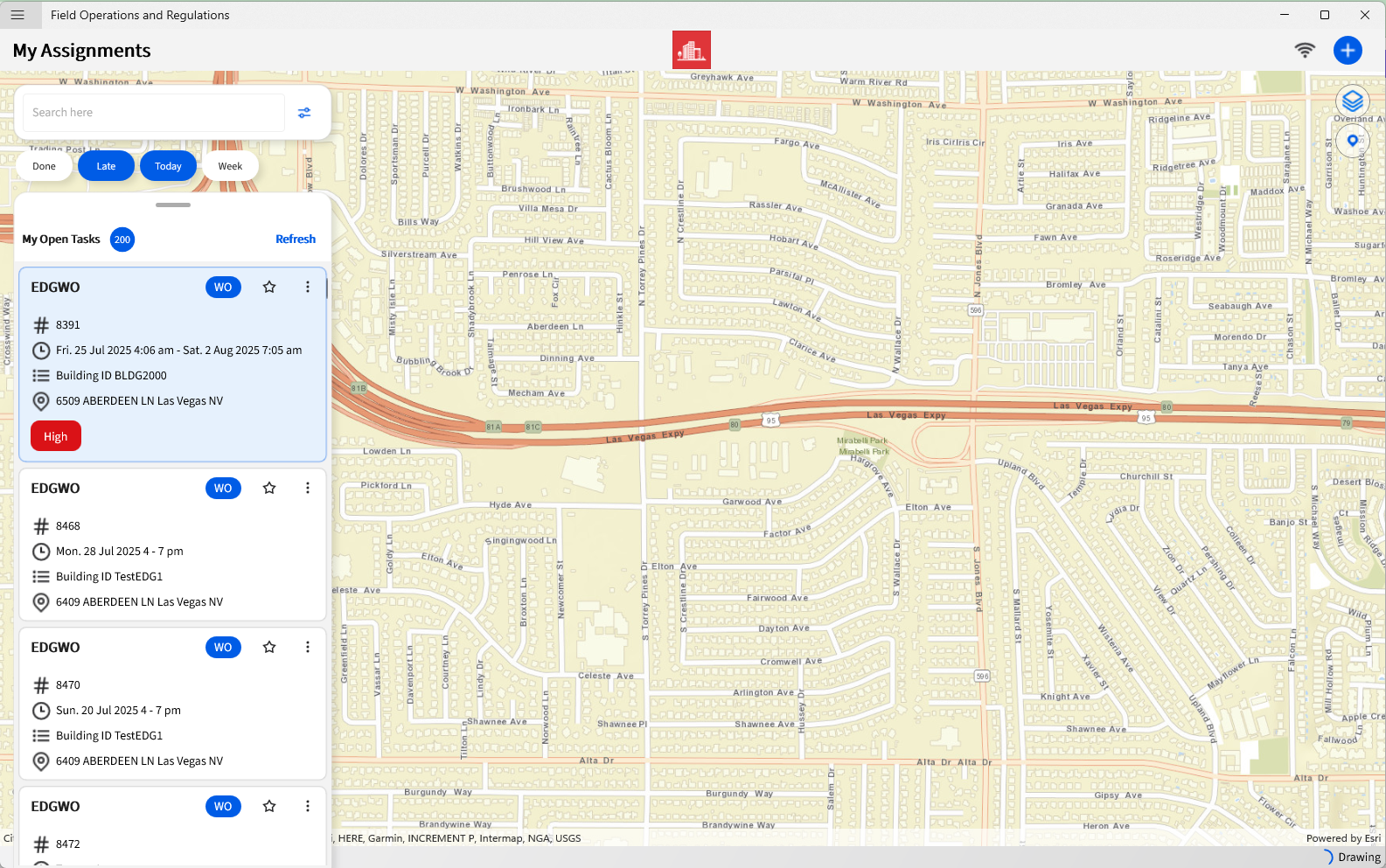
Tap Refresh to update the task list. To find a specific task, use the search bar. You can filter search results by Scheduled Date, Assigned To, Record Type, or Location.
My Assignments screen buttons and fields
This table shows the buttons and fields you can find on the home screen of the mobile app:
| Button | Description |
|---|---|
| Flyout menu
|
Opens the app's main menu.
See Flyout menu. |
| Search filter
|
Use this feature to refine your search by adding filters. |
| Kebab menu
|
Opens the Modal screen where you can find the Actions and Resource Usage options. If work orders have spot inspections, they are also shown on this screen.
See Modal screen. |
| Favorite
|
Adds a task to your list of favorites, and pins it on the top of the panel. |
| Map Contents
|
Shows the base map, where you can select the type of map you prefer in the home screen. You can also use this option to configure the filters and layers that you prefer to apply to your map. |
| My location
|
Centers the map view to your current location. |
| Wifi
|
Tap this option to toggle between online mode and offline mode. |
| Create New
|
Opens the Create New window, where you can create a new Work Order, Asset Inspection and Service Request |


