Appendix A - Data Rules Pre and Post-Save IDO Extension Class Source Code Example
Creating the Assembly.
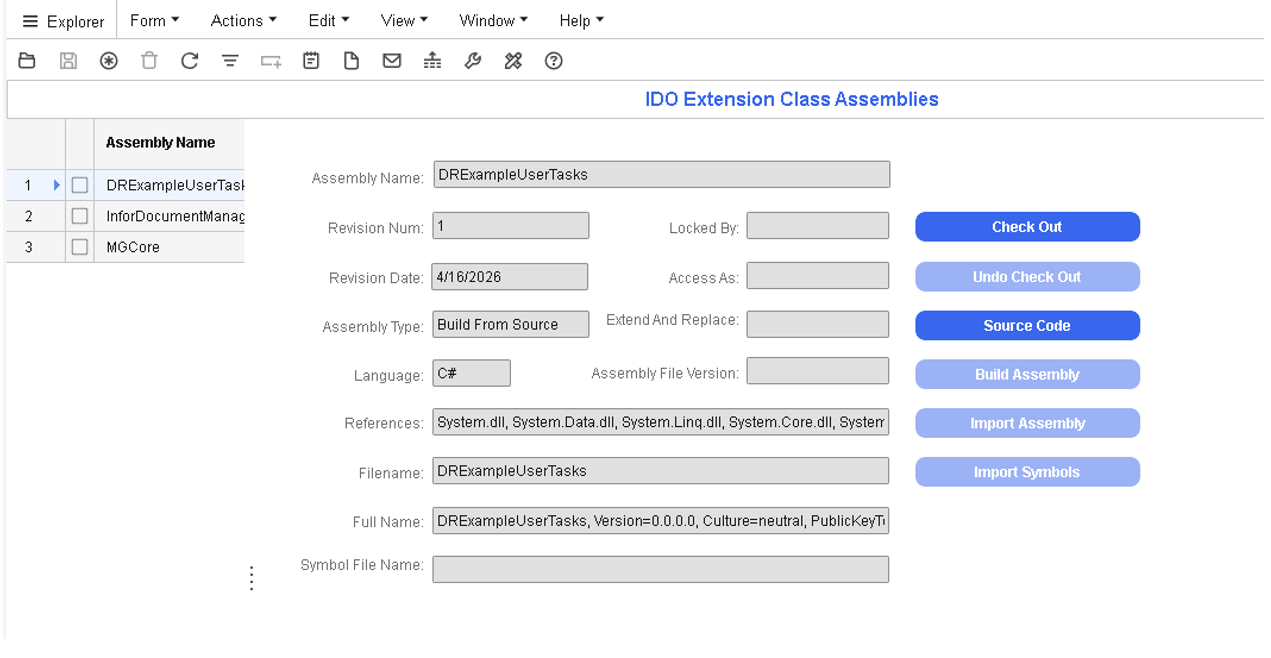
- In the Mongoose application, go to the IDO Extension Class Assemblies form.
Note: In SyteLine, go to the IDO Custom Assemblies form.
- Take off the filter and create a record with these information:
- Assembly Name: DRExampleUserTasks
- Assembly Type: Build From Source
- Language: C#
- References: add
System.Data.dllto the References string.In total, the References are:System.dll, System.Data.dll, System.Linq.dll, System.Core.dll, System.Transactions.dll, System.Net.dll, System.Web.dll, System.Net.Http.dll - Filename on the Assembly: DRExampleUserTasks
- Save the assembly record.
- Click the Source Code button.
- In the Filename in the Source Code area of the Assembly enter:
DRExampleUserTasks.cs. - Paste this code in the Code Editor:
using System; using System.Collections.Generic; using System.Data; using Mongoose.IDO; using Mongoose.IDO.Protocol; using Mongoose.IDO.DataAccess; //Filename in the Source Code area in MG on IDO Custom Assemblies Form - Source Code should be: DRExampleUserTasks.cs namespace DRExampleUserTasks { [IDOExtensionClass( "DRExampleUserTasks" )] public partial class DRExampleUserTasks : IDOExtensionClass { /// <summary> /// IDO Data Rule Action Method (Pre-Save) - Enforces that EndDate is not earlier /// than StartDate. If EndDate precedes StartDate, EndDate is automatically set /// to the value of StartDate before the row is saved. /// </summary> /// <param name="updateCollectionRequest">The update collection request context.</param> /// <param name="updateItem">The individual row being updated.</param> [IDOActionMethod] public void OnEDtEarlierThanSDt( UpdateCollectionRequestData updateCollectionRequest, IDOUpdateItem updateItem ) { DateTime? endDate = updateItem.Properties["EndDate"].GetNullableValue<DateTime>(); DateTime? startDate = updateItem.Properties["StartDate"].GetNullableValue<DateTime>(); if ( endDate.HasValue && startDate.HasValue && endDate.Value < startDate.Value ) { updateItem.Properties["EndDate"].Value = updateItem.Properties["StartDate"].Value; updateItem.Properties["EndDate"].Modified = true; } } /// <summary> /// Example IDO extension class demonstrating a Data Rules post-save /// action method that sends an email using the GenericSendEmail AES event. /// /// IDO Setup: /// Add these unbound (transient) properties to the IDO: /// - ToEmailAddress (String, Updateable) /// - Subject (String, Updateable) /// - Body (String, Updateable) /// /// Custom Assembly Setup: /// Add "System.Data.dll" to the References field on the /// IDO Extension Class Assemblies form. /// /// Because of ApplicationDB being used /// which is in the: Mongoose.IDO.DataAccess namespace /// using Mongoose.IDO.DataAccess; needed to be added /// /// Data Rule Setup: /// Action Type: Call Action Method Post-Save /// Action Method Name: SendEmailOnSave /// </summary> [IDOActionMethod] public void SendEmailOnSave( UpdateCollectionRequestData updateCollectionRequest, IDOUpdateItem updateItem ) { string toAddress = updateItem.Properties["ToEmailAddress"].GetValue( string.Empty ); string subject = updateItem.Properties["Subject"].GetValue( string.Empty ); string body = updateItem.Properties["Body"].GetValue( string.Empty ); if ( string.IsNullOrEmpty( toAddress ) || string.IsNullOrEmpty( subject ) ) return; string currentUser = IDORuntime.Context.UserName; string fromEmail = GetUserPrimaryEmail( currentUser ); if ( string.IsNullOrEmpty( fromEmail ) ) { System.Diagnostics.Trace.TraceWarning( "SendEmailOnSave: No primary email found for user '{0}'. Email not sent.", currentUser ); return; } try { List<ApplicationEventParameter> parameterList = new List<ApplicationEventParameter>(); ApplicationEventParameter parm = new ApplicationEventParameter(); parm.Name = "EmailTo"; parm.Value = toAddress; parm.Output = false; parameterList.Add( parm ); parm = new ApplicationEventParameter(); parm.Name = "EmailReplyTo"; parm.Value = fromEmail; parm.Output = false; parameterList.Add( parm ); parm = new ApplicationEventParameter(); parm.Name = "EmailSubject"; parm.Value = subject; parm.Output = false; parameterList.Add( parm ); parm = new ApplicationEventParameter(); parm.Name = "EmailMessage"; parm.Value = body; parm.Output = false; parameterList.Add( parm ); parm = new ApplicationEventParameter(); parm.Name = "EmailHTMLFormat"; parm.Value = "FALSE"; parm.Output = false; parameterList.Add( parm ); ApplicationEventParameter[] appEventParms = parameterList.ToArray(); string result; bool success = this.FireApplicationEvent( "GenericSendEmail", false, true, out result, ref appEventParms ); if ( !success ) { System.Diagnostics.Trace.TraceError( "SendEmailOnSave: GenericSendEmail event failed. Result: {0}", result ); } } catch ( Exception ex ) { System.Diagnostics.Trace.TraceError( "SendEmailOnSave: Error sending email for user '{0}': {1}", currentUser, ex.Message ); } } private string GetUserPrimaryEmail( string username ) { try { using ( ApplicationDB db = IDORuntime.Context.CreateApplicationDB() ) { IDbCommand cmd = db.CreateCommand(); cmd.CommandType = CommandType.Text; cmd.CommandText = "SELECT ue.EmailAddress " + "FROM UserEmail ue " + "INNER JOIN UserNames usr ON usr.Username = ue.Username " + "WHERE usr.Username = @Username " + "AND ue.EmailType = ISNULL( usr.PrimaryEmailType, 'P' )"; IDORuntime.AppDataProvider.AddCommandParameterWithValue<string>( cmd, "Username", username ); object result = db.ExecuteScalar( cmd ); if ( result != null && result != DBNull.Value ) return result.ToString(); } } catch ( Exception ex ) { System.Diagnostics.Trace.TraceError( "GetUserPrimaryEmail: Error retrieving email for user '{0}': {1}", username, ex.Message ); } return string.Empty; } } } - Click OK of the Code Editor to close the form, and click the Save button.
- Click the Check In button and click OK past the message:
Source control integration is currently disabled in the current configuration. The item will not be checked in to source control.
- Close the Source Code page using the X or close button at the top right of the page.
- On the IDO Extension Class Assemblies form, click the Build Assembly button on the right side.
It should build and display the message:“Assembly compiled and updated successfully.”
- Click OK.
- Click the Check In button.
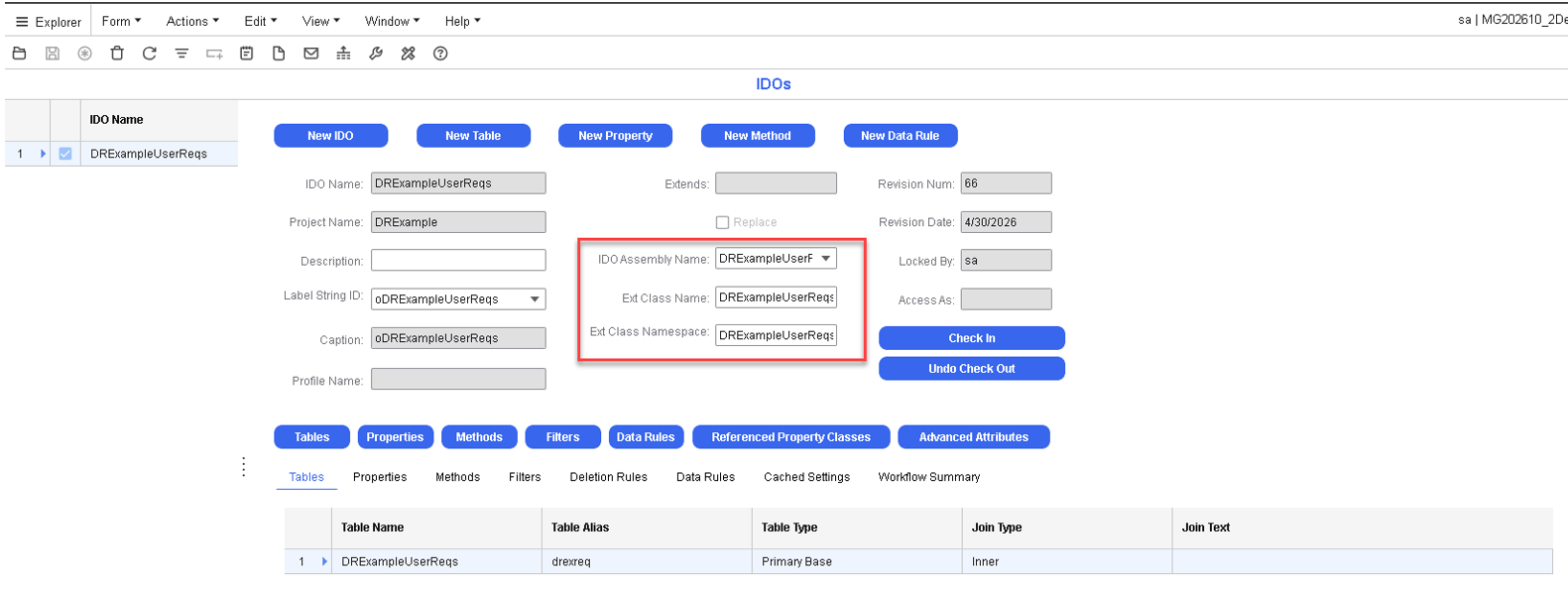
- Open the IDOs form and filter on the IDO:
DRExampleUserTasks. - Check out the IDO and populate these fields:
- IDO Assembly Name: DRExampleUserTasks
- Ext. Class Namespace: DRExampleUserTasks
- Extension Class Name: DRExampleUserTasks
- Save the IDO record.
- Check In the IDO.
- Discard the IDO Cache.
Caution: The IDO Name and Extension Class Name must match exactly.
When adding Custom Assembly Extension Class code, if the IDO already has some, it is better to create a New IDO, or find an IDO that does not have a Custom Assembly Extension Class.
- Navigate to
Note: This will also discard the IDO cache if is selected.