About the Assign Default Configuration and Use for First Login
When you access Mongoose applications for the first time, or after clearing browser cookies, or using incognito or private mode, you are presented with a configuration selection drop-down and manually select before proceeding. This is an additional step, especially when accessing Mongoose through the Infor OS portal and you expect a seamless login.
The Assign Default Configuration feature removes this manual step by automatically resolving the appropriate configuration during the first login. A fallback chain is used, in which your last-used configuration is checked in the database, followed by a default configuration provided by Infor OS through the SSO token, to sign you in without intervention.
Key benefits
- Seamless portal experience - Users launching Mongoose from the Infor OS portal are signed in automatically without needing to select configuration. This removes the common friction point reported by customers using portal-based workflows, homepages, and widgets.
- Removed the first-login confusion - New users and users on new devices no longer face an unfamiliar configuration drop-down on their first sign-in. The correct configuration is determined automatically, reducing help desk calls related to configuration selection.
- Consistent multi-device experience - Because the system checks the users' last-used configuration from the database and not only in the browser cookies, users moving between devices, browsers, or workstations get a consistent login experience without re-configuring each time.
- Reduced IT support burden - Administrators are no longer required to provided system configuration selection instructions to every new user. It is handled automatically, and any required configuration changes can still be made through the standard sign-out and re-login process.
- Unblocked homepage widgets - Homepage widgets could not function until the user had first logged into a configuration manually. With the automatic configuration resolution, widgets work immediately on first access from the portal.
How it works
The system resolves a configuration using this fall back chain, applied in order until a value is found.
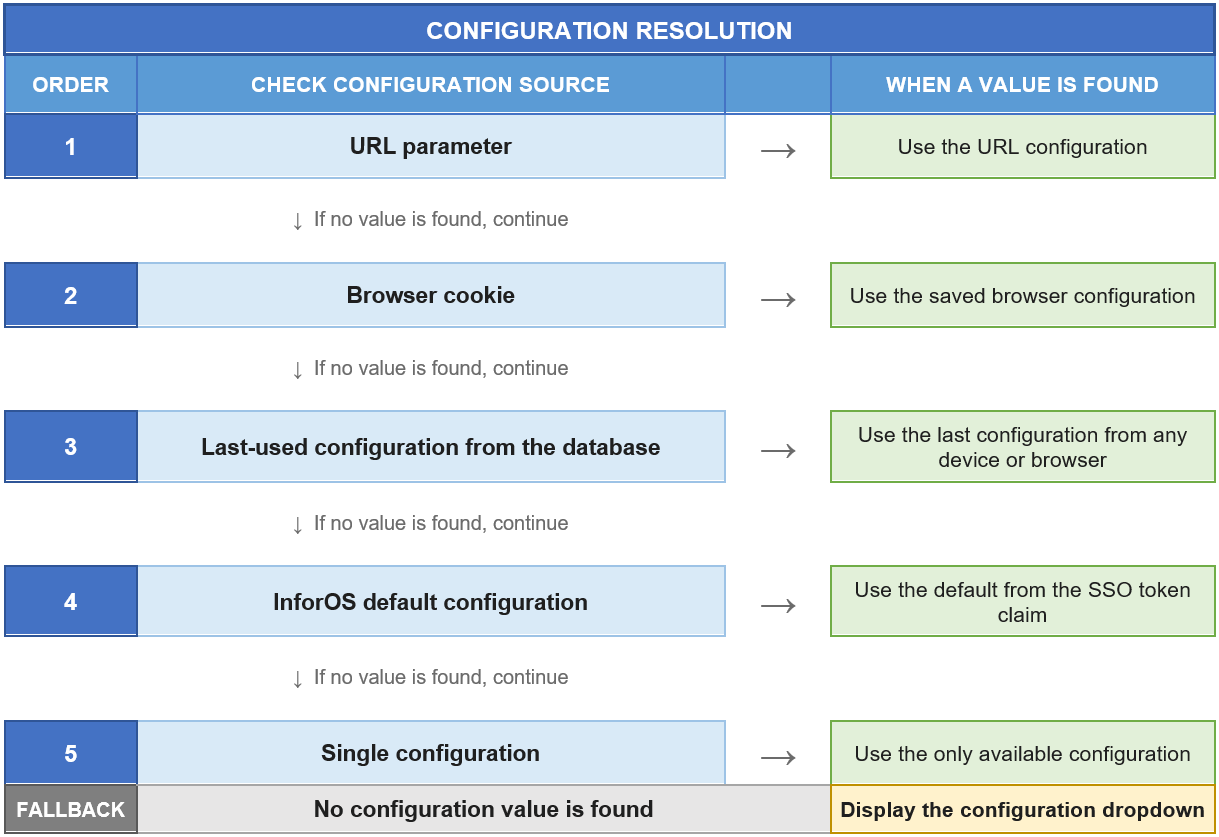
- URL parameter - If a configuration is specified in the URL, for example, by a portal link, it is used directly.
- Browser cookie - If the user previously signed in from this browser, the saved configuration is used.
- Last-used configuration from the database - The system queries the database for the last configuration the user signed into from any device or browser.
- Infor OS default configuration - If none of the above are available, a default configuration value is read from the Infor OS SSO token claim.
- Single configuration - If only one configuration exists in the list, it is used automatically without requiring selection.
Sign-in behavior by entry point
Web client (Default.aspx)
- The configuration is determined using the fallback chain described above.
- If a configuration resolved and workstation login, SSO, is active, the system signs in automatically without displaying the dialog.
- If the user previously performed an explicit sign-out, , the saved default is cleared. This signals that the user wants to choose a different configuration, so the dropdown is displayed.
- If automatic sign-in cannot proceed, the sign-in dialog appears with the configuration and username pre-filled from available values.
- When only on configuration exists and it is marked "Hide single config during sign-in" in the Configuration Manager, the dropdown is hidden entirely.
Mobile client (Mobile.aspx)
- The mobile page serves as the sign-in dialog directly.
- Configuration and username are resolved using the same fallback chain: URL parameter, then browser cookie, then the last failed attempt, then the database last-used, then Infor OS default.
- If a matching configuration is found, it is pre-selected in the dropdown.
- The user must click the sign-in button to proceed. There is no automatic sign-in on mobile.
- When User workstation login is checked, the username field is ignored because the system retrieves the identity automatically.
API entry point (session/open)
- A sign-in is attempted immediately using the provided values.
- If no configuration is provided, the system applies the fallback chain: browser cookie, then database last used, then Infor OS default.
- If no username provided, workstation login, SSO, is assumed and the username is retrieved automatically by the server.
- On success, the user is redirected to the appropriate application page.
Explicit sign-out behavior
- Automatic configuration resolution is disabled.
- The configuration selection dialog is displayed during the next sign-in, regardless of any available fallback values.
- Users can switch between configurations, such as production and test environments, by signing out and signing in again.
Configuration requirements
This feature works automatically when these conditions are met:
- Infor OS claim - the Infor OS registry must be configured to include the
MongooseDefaultConfigproperty as a claim in the SSO token. This configuration is managed by Infor OS enablement teams, MCE and CSIB, and not within Mongoose itself. - Last-used configuration tracking - The Mongoose database must have the existing last-login tracking infrastructure in place. This is present in all current Mongoose installation.
- Single Sign On (SSO) - For fully automatic login, with no dialog shown, SSO must be configured. SSO is configured automatically in Cloud environments.
Scope and Limitations
- This feature applies to the three standard sign-in entry points:
Default.aspx,Mobile.aspx, andsession/open. - The feature does not modify the list of available configurations, no sorting, filtering, or pruning.
- The feature does not modify the Infor OS registry. That is managed separately by Infor OS enablement teams.
- After the initial automatic login, the standard "last configuration" cookie-based behavior continues as before.
- When the resolved configuration is invalid, delete, disabled, or user does not have access, the sign-in dialog is displayed.