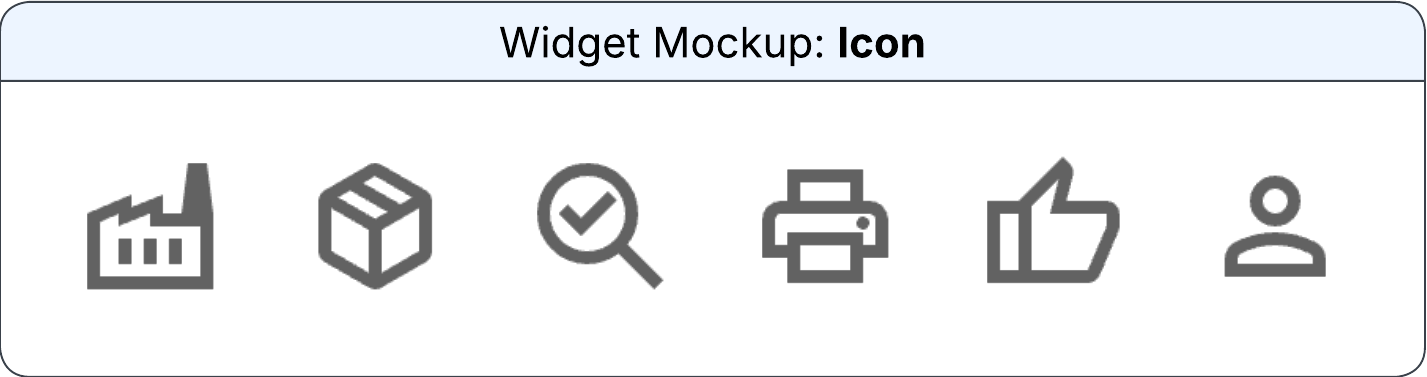
Icon widget
The widget displays an icon from an output field and allows you to adjust the alignment based on the requirement. This icon widget works similar to the icon widget in the card builder. However, this icon widget provides additional customization options. The name of the icon defaults to the value from the output field or the selected icon. You can select the color manually or apply conditional formatting from an output field.
You can specify this information in the Configure Icon Widget section on the Widget Builder screen:
- Data Source
- The data source for the icon widget.
- Horizontal Alignment
-
The horizontal position of the icon in the allocated space. Possible values:
- Left
- Centre
- Right
- Vertical Alignment
-
The vertical position of the icon in the allocated space. Possible values:
- Top
- Centre
- Bottom
- Output Field
-
The reference to select for selecting the icon. The icon settings are defaults from the selected output field, and you cannot modify.
Note: If this field is specified below mentioned fields are not displayed.
- Source (Icon Name)
-
The source from which the name is displayed. Possible values:
- Output Field
- Icon
- Output Field
- The output field from which the name is displayed. This field is displayed only if the Source (Icon Name) field is set to Output Field.
- Icon
- The type of icon to be displayed on the widget. This field is displayed only if the Source field is set to Icon.
- Source (Icon Colour)
-
The source from which the icon color is applied. Possible values:
- Output Field
- Colour
- Output Field
- The output field from which the conditional formatting is applied. This field is displayed only if the Source (Icon Colour) field is set to Output Field.
- Colour
- The color of the icon to display. You can select from the pre-approved IDS colors. This field is displayed only if the Source (Icon Colour) field is set to Colour.
- Font Size
-
The size of the text on the widget. Possible values:
- Small
- Medium
- Large
- Xlarge