Managing Interactive Rental Invoicing
Abstract
In 'Rental Agreement. Open' (STS100) and 'Rental Logistics Toolbox. Open' (STS140), related option 30='Interactive invoice' enables the user to interactively:
- Generate and review rental invoice proposals (optional)
- Print the invoice
- Collect payment for invoices and deposits
The invoice proposal can also simulate VAT or sales tax. This enabled the system to estimate a full invoice amount and deposit return.
Background
The regular rental invoicing process is optimized for batch invoicing, where many invoices are generated that are then sent to account customers. In an over-the-counter rental business, there is typically a cash customer, and only one invoice is processed at a time.
To support this, the invoicing process must be as quick and simple as possible, and must also automatically integrate with collection of the payment.
Using this functionality eliminates many of the manual steps in the rental invoicing process and minimizes the wait. This makes the solution easier to work with when the customer is standing in front of the counter.
Limitations
The tax calculation on the invoice proposal is a simulation. The actual tax calculation still occurs in the invoice flow. Because of this there may be differences between the proposal and the final invoice, for example due to rounding.
Flowchart
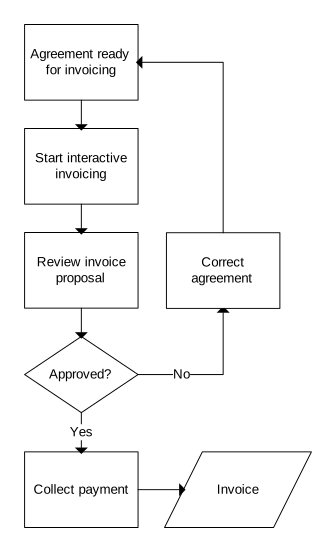
Follow These Steps
-
Locate an agreement ready for invoicing. Use (STS140) to locate a terminated agreement line (status 40).
-
Return the equipment, if applicable.
-
Report check-in and consumption meter readings.
-
Use option 30='Interactive invoicing' to initiate the final invoicing process.
-
If the order type setting 'Interactive invoicing' 3='With proposal', (STS811) is shown. Review the invoice proposal.
-
Perform this step.
- If the proposal must be approved, press F14='Approve'.
- If the proposal is incorrect, press F3/Close. The proposal is deleted.
-
If the payment terms indicate that this is a cash desk sale, (OIS215) is shown to collect payment. Select the appropriate payment method, specify the paid amount and press F14='Validate payment'.
-
Update the agreement with the correct information. Start over from step 1.
Outcome
- The invoice is printed.
- The rental agreement and invoicing history is updated.
- The deposit amount is returned, if applicable.
- The cash payment is registered, if applicable.
Setup
- To enable deposit management, the (STS020/E) setting 'Deposit' must be enabled (value higher than 0='No').
- To print the final invoice immediately after equipment return, and use 'Cash Payment. Open' (OIS215) to collect payment, the rental agreement must be set up with cash payment terms. 'Cash payment' must be 2='Yes - Cash payment via Cash Desk Sales' in (CRS075/E).
Settings Descriptions
|
Program ID |
Field Heading |
Description |
|---|---|---|
|
STS020/F |
Tax on invoice proposal |
Select this check box to calculate tax when generating in-voice proposals. This is a prerequisite for the proposal to estimate totals and deposit return. |
|
STS020/F |
Interactive invoicing |
This drop-down controls how option 30 in (STS100) and (STS140) behaves. 0: Not allowed. 1: Invoicing is performed immediately. 2: A warning message is displayed. Pressing or option 30 again starts the invoicing process. 3: An invoice proposal is shown. Approving it starts the invoicing process. |