Subcontract Service
Use this procedure to process a subcontracting repair order.
Subcontracting occurs when a component is sent to a contractor for repair, refurbishment, or overhaul. Subcontracting occurs when the dealership or equipment reseller does not have the capability to perform the required task to make the component serviceable.
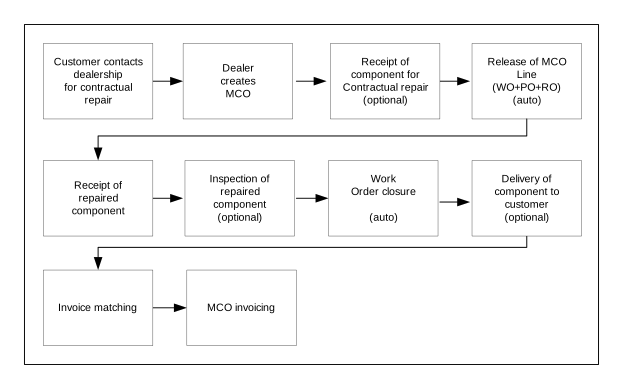
A typical scenario starts when a customer contacts the dealership and requests a repair order to a contractor that handles the servicing of the equipment. A maintenance customer order is created to cover the repair order based on a predefined service BOM. A work order and a purchase order are then generated after the MCO line is released. The component is sent to the contractor for repair. After the work is complete, the contractor returns the serviceable component to the dealer. The process is completed when the dealer delivers the serviceable component and bills the customer.
Limitations
A common subcontracting scenario is described where a component sent to the dealership is repaired, refurbished, or overhauled by the contractor. The automated processes of work order creation, service history approval, purchase order creation, requisition order (component sent out to supplier), MCO line approval, and work order closure are used to describe the flow.
The process depends on the component requiring repair being received and available in the dealership warehouse from which it is sent to the contractor.
Outcome
The maintenance customer order and work order are created, reported, closed off, and invoiced.
Before you start
The product and lot number must exist in the inventory. The lot is sent to the contractor with the subcontracting order. Subcontracting repair order types are defined with purchase order category 60-'Repair order'.
For information about prerequisite settings, refer to these documents and apply the provided configuration recommendations:
-
Create a valid maintenance agreement in 'Maint Agrmnt. Open' (COS410).
-
A valid service definition must exist in 'Service. Open' (MOS300).
-
See Create maintenance customer order type.
-
Select an order type with 'Next manual function' as 5-'Start work order'.
-
On 'Maint CO Type. Open' (COS010/F):
- Specify 1-'Yes' in the 'Auto approval' field.
- Specify 'Approval limit' to an amount higher than the total purchase order amount.
-
-
-
On 'Work Order Type. Open' (MOS120/F):
- Specify 1-'Yes' for parameter '100 Should maintenance object update material plan'.
- Specify 1-'Yes' for parameter '193 Close WO without displaying MOS050'.
-
On (MOS120/I):
- Specify 0-'Not mandatory' for parameter '380 Mandatory approval of time transactions'.
- Specify parameter '440 Default repair order type' to use a purchase order type with order category 60-'Repair order'.
-
-
Define purchase order type.
See .
-
On 'Purchase Order Type. Open' (PPS095/H):
- Specify 1 for parameter '380 Inventory management'.
- Specify value for parameter '381 Default order type - repair or exchange order'.
-
On (PPS095/F), specify 2-'No bal upd' for parameter '150 Material plan update'.
-
On (PPS095/F), through parameter 177, you can define a specific costing model for the purchase order to be applied. This is an optional setting.
-
-
See Define Basic Settings for Services.
-
Activate auto approval of service history on 'Service. Connect to Facility' (MOS301/E) by specifying 1-'Yes' in the 'Auto approval' field.
-
A subcontract work center with 'Resource type' of 2 on 'Work Center. Open' (PDS010/E) must be used in 'Product. Connect Materials/Operations' (PDS002) for the operation.
-
On (PDS002/G), specify 1-'Pur + Req order' for 'Run time' and 'Subcontr ctrl'.
-
On (PDS002/H), specify a 'Unit price' and 'Supplier'.
Use related option 65='Subcontracting Supplier' to open 'Subcontracting. Connect Supplier' (MOS018) to manage the preferred supplier ID on different levels. The 'Unit price' is managed through a purchase agreement in 'Purchase Agreement. Open' (PPS100) in this case.
- For subcontracted operations, runtime is not used. Instead, use the field 'Production days'. Include runtime and possible shipping or inspection lead time. You can edit the field in (PDS002) on the service, in (MOS171), or in (MOS101) on the WO.
-
-
On 'Settings. Maintenance 1' (CRS788/F), specify 2-'Yes, stop' for parameter '18 Check for open transactions when reporting WO'.
-
See .
-
On 'Settings – Purchase' (CRS780/G), specify parameter '32 Planning policy - subcontracting and repair'.
See section Settings for planned POs should be automatically released to POs in .
-
On (CRS780/E), specify a repair order type for parameter '07 Default order type - subcontracting'.
-
On (CRS780/G), specify a location for parameter '34 Location template - repair order'.
-
-
On 'Item. Connect Facility' (MMS003/E), specify '2-Acc chg trns tp' for parameter 'On-hand method'.
See .
-
On 'Purchase Agreement. Open Lines' (PPS101/B), define a 'Group ID' using 'Service process' (IFPRCS) and 'Service' (IFSUFI) as main controlling fields for defining a price for the complete service. Specify a 'Str dt' and a 'Purch price'. Use the main controlling fields 'Product' (CAPRNO), 'Structure type' (CASTRT), 'Service' (CASUFI), and 'Operation number' (POOPNO) to define a price for a specific subcontracting operation.
See .
Follow these steps
-
See Quick Entry of Normal Maintenance Customer Order.
The instruction is based on panel sequence 9 on (COS130/P).
-
Start 'Main CO Quick Entry' (COS130).
-
Specify the required information for customer, agreement, product, lot number, service, facility, and order type.
-
Specify other optional information if required, for example, requested start or finish dates.
-
Click to create the maintenance customer order. Panel sequence 9 opens 'Work Request . Open' (MOS170).
When the maintenance customer order is confirmed, these activities are automatically performed:
- A maintenance customer order header and line is created.
- A work request is created in (MOS170).
- A planned purchase order is created in (PPS170).
- The planned purchase order is released.
- The created work request is released.
- A work order is created in 'Work Order. Open' (MOS100).
- A purchase order is created in 'Purchase Order. Open' (PPS200).
-
-
See .
-
See Print MCO Invoice.
- The MCO invoice is printed according to the settings defined in 'Output Server Definition. Open' (MNS204) and 'Output Definition. Open' (MNS205). The invoice is available for review in 'Maint Invoice. Display' (COS350).
- With the suggested setup in the Before you start section, these steps are automatically performed:
- The operation is closed with status 90.
- The service is approved in 'Equipment. Open Service History' (MOS180).
- The work order is closed with status 90.
- The MCO line is approved for invoicing with status 50.
- The work order is updated to status 97-'Invoiced' and the maintenance customer order line updated to 70-'Invoiced'.
Material setup
On (PDS002/E), select 'Issue method' and 'Subcontract control', and specify the required values.
If 'Subcontr ctrl' field is set to 0, material is issued to the work order in the same way as for in-house operations.
If 'Subcontr ctrl' field is set to a value greater than 0, material is issued against a requisition order (RO) that is connected to the subcontracting purchase order. The RO is created when the planned purchase order is released. The material line is closed at goods receipt. Use issue method 2 to prevent material handling against the work order.
If material lines are added manually on the work order, configure the specific line if you must send the material. 'Subcontr ctrl' and 'Issue method' determine how you handle the material.