A more complex example
This is a more practical example where Tasks are used to represent specific users who perform the tasks. A process created can be reused any time you have a purchase request that needs approval. Instead of Jane Doe approving a purchase request from the IT department, a task called CIO performs the approval. Instead of Bob Johnson receiving an email telling him the CIO's decision, a task called Procurement Manager receives the message.
Using tasks to represent specific users provides more flexibility to a process. For example, if Jane Doe leaves her position and Bob Johnson goes on vacation when a purchase needs to be approved, the process can still run successfully because whoever has taken over Jane's duties can approve or reject the request. Whoever is covering for Bob's vacation can proceed with or cancel the purchase request depending on the CIO's decision.
In this example, we are adding some other functions to this process that includes:
-
Configuring time out behavior, that is, define how the process goes if no one takes appropriate action within the configured timeframe.
-
Configuring Reminders, that is, reminders are configured in a process so that reminders are sent to the Inbasket of tasks that have not yet performed a required action.
Configure the User Action node for a task instead of a specific user
-
On the User Action General tab, when you click the button to assign a work item to be sent to the Inbasket of the person who must perform the task, you click the Tasks tab and then select the task or role that you want to perform the work item. In our case, this is the CIO.

Configure the Time out tab
On the User Action General tab, configure a timeout. A timeout stops the process and logs a failure because, in this case, users did not respond within a specified timeframe.
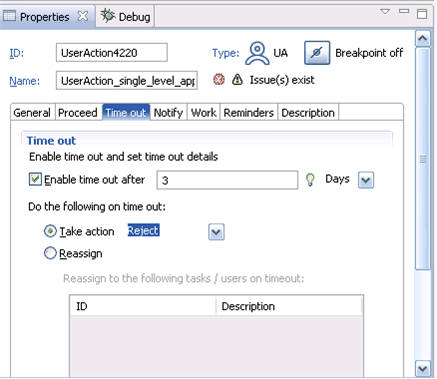
On the User Action Properties Time out tab, make this configuration:
-
After how many hours or days does a timeout occur? In our example, we have configured three days.
-
Behavior upon timeout: Default choices are Take action, one of the actions that we created for the process as a whole, or Reassign.
For simplicity in our example, we select Take action/Reject. This means that if a timeout occurs, the process fails and the initiator of the process will receive a message that the approval was rejected.
Configure the Reminders tab
You can configure reminders. These are notifications reminding users that they have not yet taken action on an action item in their Inbasket. The Reminders tab is for configuring when the reminders are sent.

-
You must check the Reminders check box.
-
Specify the number of days or hours after the work item is received in the Inbasket that the reminder is sent, and no action has been taken. In our example, we have configured two days.
-
Configure a first Reminder message. Click the Create the reminder message link.
-
You can use the second Reminder tab to configure a follow-up reminder.