Configuring Direct IOS for Infor Lawson installations using Infor Process Automation
Infor Lawson installations that use Infor Process Automation (IPA) can optionally perform this configuration which enables IPA to communicate directly with Infor Lawson System Foundation (LSF) through IOS rather than through servlets. Some performance improvement can be seen in certain scenarios when using this option.
- Copy the services.cfg from <GENDIR>/install to <LAWDIR>/system.
This table shows the entries that exist in the copied file:
Entry name Description CONTEXT_FACTORY Specify this value: com.sun.jndi.cosnaming.CNCtxFactory
SERVER_NAME In WebSphere, this is the Fully Qualified Name of the Infor Lawson system. This value can be found through the WebSphere Administrative Console. Navigate to .
The value needed here is shown in the Host Name column.
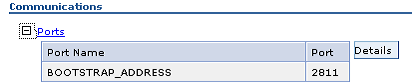
SERVER_IIOP_PORT This is the port for the application server "bootstrap address".
This value can be found through the WebSphere Administrative Console. Navigate to , and then click the server name.
In the Communications section, expand the Ports list. Specify the value that is in the Port column.
SERVER_NAMESPACE This is the server and node names. Specify the name in this format:
cell/nodes/<node name>/servers/<server name>/
For example:
cell/nodes/LL3A2213Node01/servers/NT901
This value can be found through the WebSphere Administrative Console.
Navigate to . Specify the value from the first column for the server name. Specify the value in the second column for the node name.
