Configuring a file channel
When you configure a file channel, specify the directory to monitor for files and set parameters for the monitoring process. In a multi-tenant environment, the process and error directory contents are stored in the database. You can access a file while being used by another process.
For example, in the first step, information is written to the file. In the next step or in another process, the same file is transferred. When the file contains a large amount of content, the write remains incomplete as the transfer begins. The file errors out, but the file channel still transfers the file in the next scan. To prevent file channel errors, create the file with a temporary name such as filename_temp, then rename it to the filename that the file channel scans.
HOMEDIR/.ssh/authorized_keys
- Specify this information:
- Channel Name
- Specify a name for the channel. The name can include numbers and special characters. We recommend that you use a name that reflects the purpose of the channel.
- Description
-
Optionally, provide a description for the channel. For example, provide details on what the channel is used for or what it is about.
- Enabled
-
Select this option to enable this channel.
If the channel is enabled, it can be activated automatically, when Infor Process Automation is started, or manually. The channel is enabled by default.
If a channel is disabled, none of its receivers can be activated.
- File Channel Type
-
Select the location of the directory that is being monitored from these options:
- Local (default): The directory is located on the machine you are configuring. In this case, the directory location is sufficient. Mapped drives are not supported.
- Remote: The directory is located on a different machine than the one you are configuring.
- Amazon S3: The directory is located on Amazon S3 than the one you are configuring.
- Host
-
This field is displayed if you select Remote in the File Channel Type field.
Specify the host name of the remote machine. If you do not specify a port in the host address, the default FTP port is used. Append a colon and the port number (
:port#) to the address to configure a specific port number. - Protocol
-
This field is displayed if you select Remote or Amazon S3 in the File Channel Type field.
Select Sftp.
Optionally, enable host key checking.Note: Refer to KB2157314 for implementing host key checking on an SFTP connection in Infor Process Automation. Enabling host key checking enables Infor Process Automation to verify the correct server using the cryptographic key. - Authentication Type
-
This field is displayed if you select Remote or Amazon S3 in the File Channel field and SFTP in the Protocol field.
Select User and Password, User and Privatekey, or User, Password And Private Key.
- User
-
This field is displayed if any one of these conditions is met:
- FTP is selected in the Protocol field.
- User and Password is selected in the Authentication Type field.
- User and Privatekey is selected in the Authentication Type field.
- User, Password And Private Key is selected in the Authentication Type field.
For SFTP, specify the user who runs the SFTP connection.
- Sftp Password
-
This field is displayed if any one of these conditions is met:
- SFTP is selected in the Protocol field.
- User and Password is selected in the Authentication Type field.
- User, Password And Private Key is selected in the Authentication Type field.
Specify the password for the user.
- Private key
-
This field is displayed if you select User and Privatekey or User, Password And Private Key in the Authentication Type field.
Browse to the location where the private key is located.
The private key file must be on the system that is running the Landmark user interface, or, if it is on a remote server, the server must be mapped to the system that is running the Landmark user interface.
Note:- In some versions of Infor Process Automation, the PrivatekeyPath phrase is displayed instead of the file name and location.
- When using username and password authentication, Infor Process Automation does not support keyboard interactive authentication.
- When using username and private key, Infor Process Automation requires the key in OpenSSH format, with support for RSA keys in that format. Refer to KB2040849 for steps on generating an RSA key pair and converting it to OpenSSH format using a key generator tool.
- Passphrase
-
This field is displayed if you select User and Privatekey or User, Password And Private Key in the Authentication Type field.
If the private or public key pair requires a passphrase for the user running the connection, specify the passphrase.
- Source File Directory
-
Specify the directory to monitor for location of target files.
If the File Channel Type is Local, the directory should refer to a local directory that exists on the system running Process Automation. Specify a fully qualified path. Mapped drives are not supported.
For example:
- Windows:
C:\ftp\incoming - UNIX:
/ftp/incoming
If the File Channel Type is Remote, the directory must refer to a remote directory that exists on the system running the FTP server. Specify a directory relative to the home directory configured on the FTP server.
For example:
- If the FTP server is running Windows:
- Home directory, which is configured on the FTP sever:
C:\ftp - Directory, which is configured in Process Automation:
\incoming - Result, which is the scanned directory:
C:\ftp\incoming
- Home directory, which is configured on the FTP sever:
- If the FTP server is running UNIX:
- Home directory , which is configured on the FTP sever:
/ftp - Directory, which is configured in Process Automation:
/incoming - Result, which is the scanned directory:
/ftp/incoming
- Home directory , which is configured on the FTP sever:
- Windows:
- File Match Case Sensitivity
-
Select one of these options for case in file names:
- Enforce Case: Select this option to enforce letter case when selecting of files.
- Ignore Case: Select this option to ignore letter case when selecting files.
See Wild cards.
- Error File Directory
-
Specify a location in the local directory to where files that are not successfully processed are moved. You must specify a location that is on the local machine, which is the system running Process Automation, and a fully qualified path.
For example:
- Windows:
C:\channels\errors - UNIX:
/channels/errors
- Windows:
- In-Progress File Directory
-
Optionally, specify a location in the local directory to where processed files, which are files that processed successfully, are moved. You must specify a location that is on the local machine, which is the system running Process Automation, and a fully qualified path.
For example:
- Windows:
C:\channels\processed - UNIX:
/channels/processed
Optionally, you can enable to accept an empty directory.
- Windows:
- File Scan Interval Time in Minutes
-
Specify the number of minutes between each scan of the monitored directory for files to process.
The System Configuration property, fileChannelsMonitorLoopInterval, might override this setting.
See File channels.
- Last File Scan Time
-
This is a display field that shows the time stamp of the most recent scan for files.
- Notify By Email
- Select None, On Loss, or On Error
- Test File (Works Only With Test Connection With Trace Log)
- Specify the location of the test file to be created during the test connection.
- Test Connection
-
After saving the configuration, click this button to test the new or updated connection. Alternatively, select .
If the properties are set up correctly, a success message is displayed. If not, an error message is displayed.
Note:The success message looks like this:
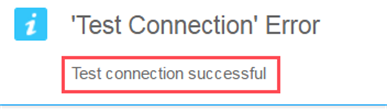
Disregard the "Test Connection Error" text.
- Test Connection With Trace Log
- Select this check box to capture the debug logs for the specified connection.