Canvas features 2.0
The canvas provides tools for creating, editing, and viewing process maps. It allows you to add elements, arrange and connect them, adjust their appearance, and navigate the process map during design or review.
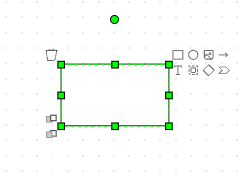
With canvas you can:
- Add and edit elements:
- Drag elements from the palette onto the canvas.
- Use the context menu of an existing element to add new elements.
- Edit element properties in the attributes panel on the right side of the canvas.
- Double-click a shape to add or edit its label.
- Use the Show label property to control label visibility.
- Select and manage elements:
- Press CTRL and click to select one or more elements.
- Use the lasso tool in the elements palette to select and move multiple elements.
- Edit attributes for multiple selected elements at the same time.
- Select an element and click the delete icon to delete the element.
-
Arrange and align elements
- Move elements freely on the canvas.
- Place elements next to each other or overlap them.
- Use alignment guides to position elements relative to each other.
- When elements overlap:
- Use and to change their order.
- Use the Opacity attribute to make elements transparent.
-
Connect elements:
-
Connect elements using lines.
-
Add a line from an element’s context menu and select the target element.
-
Draw lines manually between connection points.
-
Use shape icons in the context menu to add a new, automatically connected element.
-
-
Navigate and manage the canvas
-
Zoom in, zoom out, or fit the entire process map to the screen.
-
Undo and redo changes using keyboard shortcuts.
-
Copy and paste elements, including between different process maps.
-
-
View modes
-
Click Viewer Mode to switch to Process Viewer and display the process map for sharing or review.
-
Click Design Mode to switch back to Process Designer and to continue editing.
-
| Name | Icon | Location | Description |
|---|---|---|---|
| Zoom In |  |
Toolbar on canvas | Increase the diagram size. |
| Zoom Out |  |
Toolbar on canvas | Decrease the diagram size. |
| Fit to Screen |  |
Toolbar on canvas | Reset zoom and make the diagram fit in the available canvas space. |
| Keyboard shortcuts |  |
Toolbar on canvas | Display the supported keyboard shortcuts. |
| Lasso tool |  |
Elements palette | Activate the lasso tool to drag and select multiple elements with the mouse. |
| Bring to front |  |
Bottom left corner of selected shape | Bring this shape in front of an overlapping shape. |
| Send to back |  |
Bottom left corner of selected shape | Place this shape behind an overlapping shape. |
| Delete |  |
Upper left corner of selected shape | Delete the selected shape. |