Adding Par counts in Android

Use this procedure to record par counts with the handheld terminal application.

Before you record par counts with the handheld application, you or your administrator must configure Par Counting and print par labels in the application. See the Infor Mobile Supply Chain Management for Infor Financials and Supply Management Administration Guide for more information.

Note: When Item Lifecycle Management is enabled a blue alert button or icon will appear for items set to status of warning. Items set to warning will be allowed to be used in transaction. A red alert button or icon will appear for items set to status of hard error. Items set to hard error will not be allowed to be used in transactions. This is only available on Android.
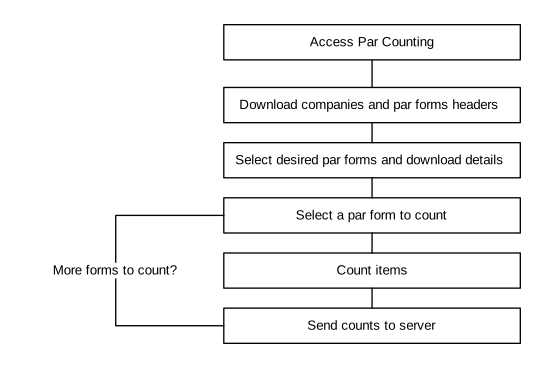
Adding par counts in Android
  1. On the MPC Home page, tap the Options menu (three bars) icon. The MPC sidebar panel is displayed.
  2. Tap Par Count. The Par Form screen is displayed.
  3. To change a company:
    1. Tap the Options menu (three dots) icon.
    2. Tap Change Company. The Change Company page is displayed.
    3. Select the company:
      1. Tap the company from the list.
      2. Optionally, search for a company by specifying the company details on the search filed.

        Tap the company you searched for.

  4. Tap the Plus icon to select and add a par form. The Select Parform page is displayed.
    Note: Location barcodes can be scanned to add a par form. Item barcodes can also be scanned to directly navigate to the Par Item Details screen of the scanned item. Navigation to Par Item Details screen through item scanning is only allowed if there is only one par form added.
  5. Tap Select Parform to select between My Par Forms or All Par Forms:
    1. To select from My Par Forms:
      1. Tap My Par Forms to view the par forms set up for you by your administrator.
      2. Select the par forms you want to count and tap OK.
    1. To select from All Par Forms:
      1. Tap Options > Select All to select all par forms.

        Select Clear All to deselect all your selected par forms

      2. Optionally, search for a par form(s) by specifying the par form(s) details on the search filed.

        Tap the par form(s) you searched for.

      3. Tap OK. The selected par form(s) is displayed.
  6. Tap Par Form. The Par Item Details screen is displayed.
    The PPE label is displayed to indicate if the item is identified as a PPE item.
    Note: If an item is created in FSM and tagged as PPE, the PPE label is Yes. If not tagged as PPE, the PPE label is No.
  7. Specify the par count for each item.

    Specify this information:

    Count (EA)

    Specify the count for the par count. Decimal values can be specified if set to be allowed. The highest number allowed is the par level. See the Infor Mobile Supply Chain Management for Infor Financials and Supply Management Administration Guide for more details.

    Add. Qty. (Additional Quantity)
    Note: Add. Qty is only displayed if you have rights to the Above Par role.

    Specify the additional request quantity.

    The highest number you can specify in this field is determined in the Above Par setup. For example, depending on the factor specify in setup, you might be able to specify three times the normal par quantity.

  8. Tap Next to count the next item.
  9. Tap Done when finished counting. The Par Forms screen is displayed.
  10. Tap the inline menu to send for par count.

    Optionally, tap Options > Send All to send all par forms.