Adding cycle counts in Android

You can record cycle counts with the handheld terminal. You can scan or record items, locations, bins, and companies.

Before you record cycle counts with the handheld application, you or your administrator must configure Cycle Counting in the application. See the Infor Mobile Supply Chain Management for Infor Financials and Supply Management Administration Guide for more information.
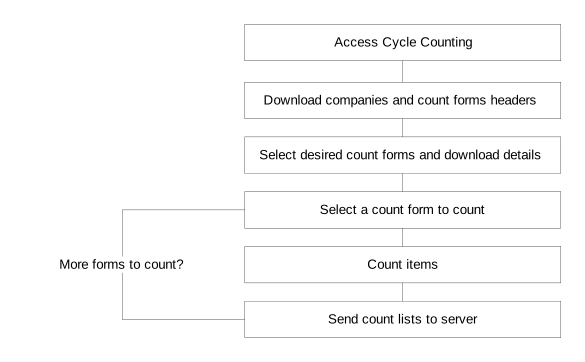
Adding cycle counts in Android
  1. On the MPC Home page, tap the Options menu (three bars) icon. The MPC sidebar panel is displayed.
  2. Tap Cycle Count. The Select ID List screen is displayed.
  3. To change a company:
    1. Tap the Options menu (three dots) icon.
    2. Tap Change Company. The Change Company page is displayed.
    3. Select the company:
      1. Tap the company from the list.
      2. Optionally, search for a company by specifying the company details on the search filed.

        Tap the company you searched for.

  4. Select the ID then tap the Plus icon to add ID(s) to count.

    The Add Select ID screen is displayed.

  5. Select the ID for counting and tap OK.

    Optionally, you can tap the Options menu > Select All to add all IDs in the list or tap Clear All to cancel your selections.

  6. On the Select ID List screen, tap the select ID that was added.
  7. On the Item Details screen, specify a value in the Count field to start counting.
    The PPE label is displayed to indicate if the item is identified as a PPE item.
    Note: If an item is created in FSM and tagged as PPE, a PPE tag is displayed on the screen. If the item is not tagged as PPE, the PPE tag is not displayed.

    Transaction UOM is displayed if it is used in creating the count form. Otherwise, Stock UOM is displayed.

    For bin tracked items with physical inventory bins, the display sequence will be the main bin followed by physical inventory bins. Specify the counts accordingly.

  8. Tap Next to specify the count for the next item.

    Tap Done when finished counting.

  9. On the Select ID List screen, send the counted Select IDs for counting by tapping on the inline icon in row.