Configuring the app manually
- Access the Factory Track Android application on the device. The Server Settings page is displayed if the app has not yet been configured.
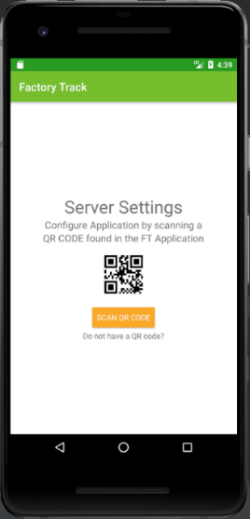
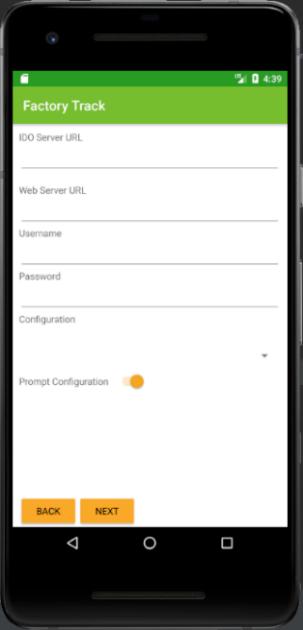
- Specify this information:
- IDO Server URL
-
The URL of the Factory Track Android application for connecting with the Factory Track server address. You can use this syntax:
https://<FactoryTrack Server Name>/IDORequestService/RequestService.aspx - Web Server URL
-
The URL of the web server. You can use this syntax:
https://<utilityservername>/WSWebClient/Default.aspx?form=FTIconMenu.mobi&page=light&mgShowName=andGridCell - Username
-
The username required to connect to Factory Track to perform the registration.
Note: The user must have FTAutomation integration permission.
- Password
- The password of the username as specified for the Infor Factory Track application.
- Configuration
-
The ERP configuration name used in Infor Factory Track.
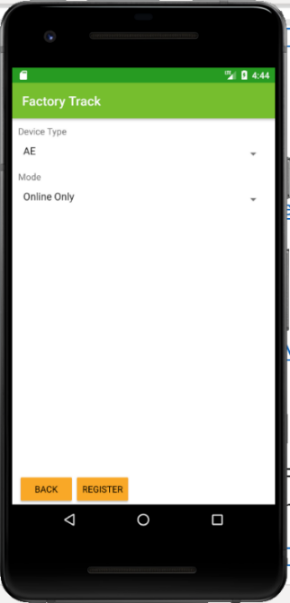
- Specify this information:
- Device Type
-
The type of device.
Note: The data displayed in this app is based on the device type specified on the Device Types form in Infor Factory Track.
- Mode
-
The mode of operation for the device. The value in this field must be set to Online Only.
- Click to complete the configuration. The login screen is displayed.
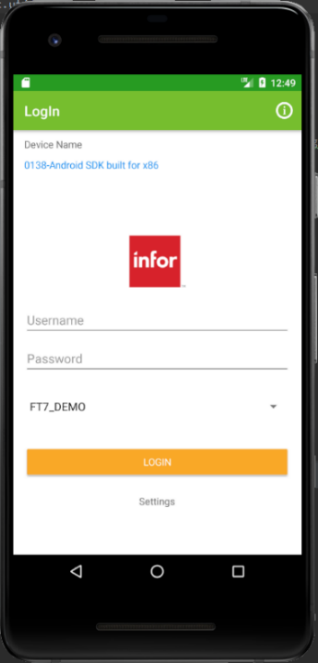 Note: When a device is registered successfully, the device name (combination of the internal name and the sequence number of the device) is displayed. The device name is registered in Factory Track and must be displayed on the Devices form.