Generating Defaults
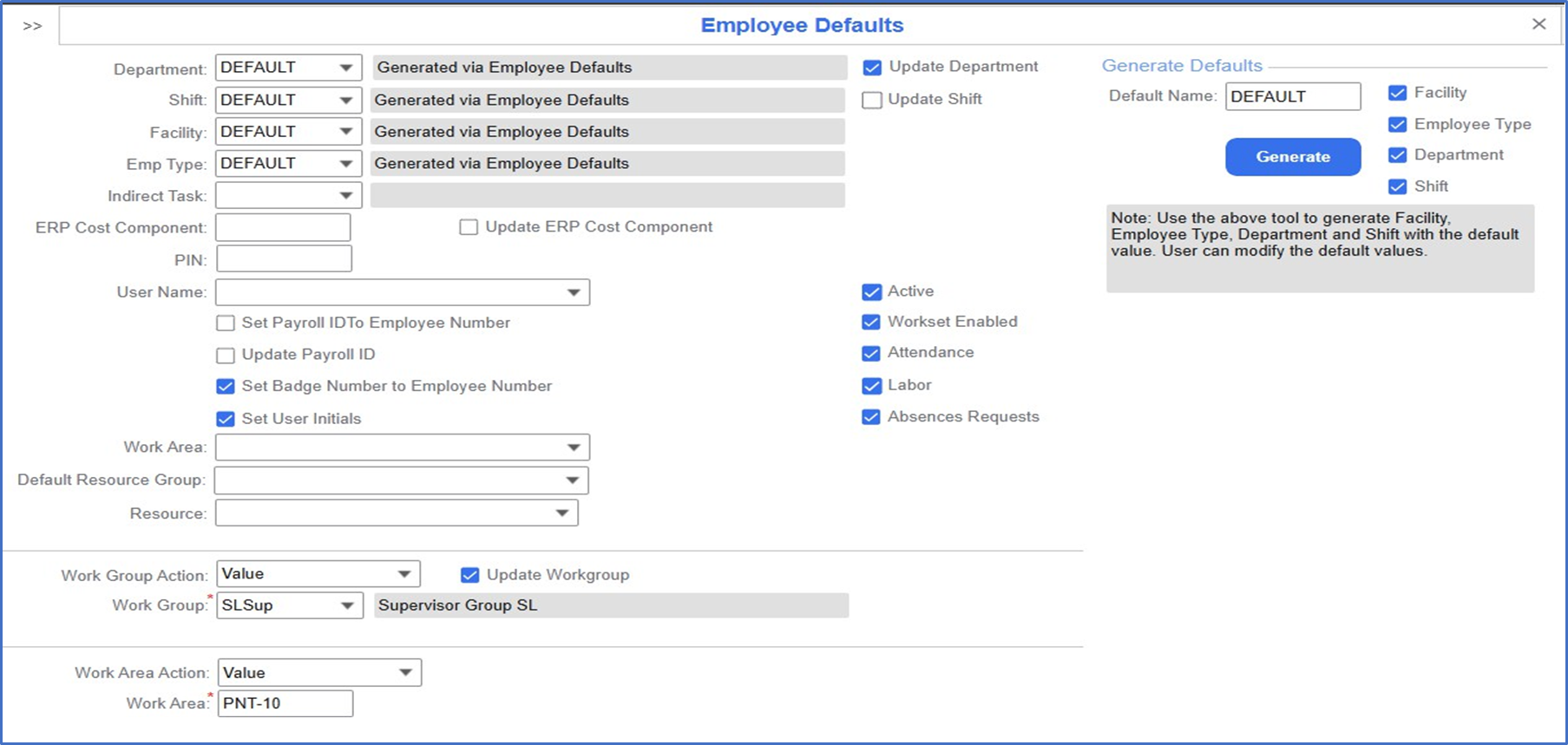
- Select . The Employee Defaults form is displayed.
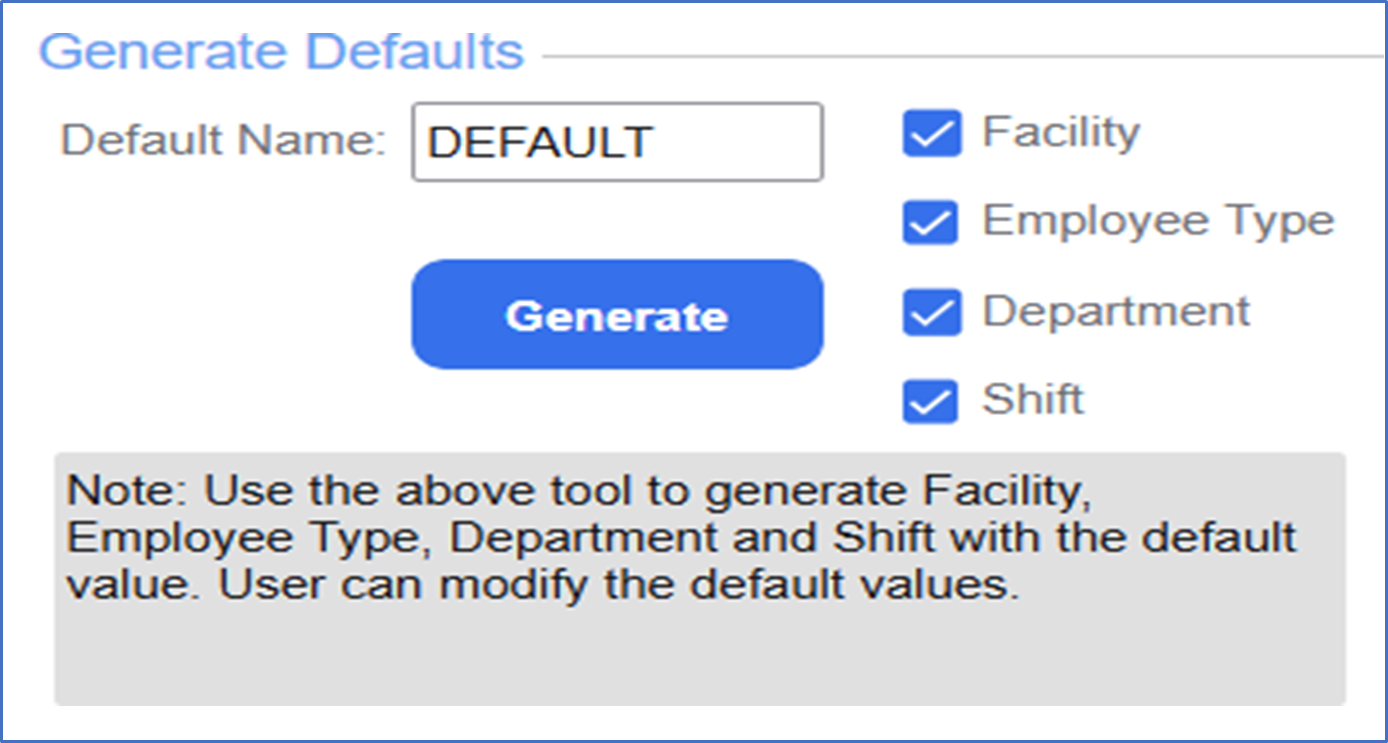
- Specify this information in the Generate Defaults section: field of the
- Specify this information:
-
Default Name
-
Set this value to DEFAULT.
-
Facility
-
Select this check box to generate the default value for a facility.
-
Employee Type
-
Select this check box to generate the default value an employee type.
-
Department
-
Select this check box to generate the default value for a department.
-
Shift
-
Select this check box to generate the default value for a shift.
- Specify this information:
-
Department
-
Set this value to DEFAULT.
-
Shift
-
Set this value to DEFAULT.
-
Facility
-
Set this value to DEFAULT.
-
Emp Type
-
Set this value to DEFAULT.
-
Update Department
-
Select this check box to update the department for generating the employee defaults.
-
Set Badge Numbers to Employee Number
-
Select this check box to set the badge numbers to employee number.
-
Set User Initials
-
Select this check box to set initials for the user.
-
Active
-
Select this check box to activate the employee
-
Workset Enabled
-
Select this check box to enable the workset for the employee.
-
Attendance
-
Select this check box to generate the attendance calender for the employee.
-
Labor
-
Select this check box to generate labor for the employee.
-
Absences Requests
-
Select this check box to generate the absences record for the employee.
-
Work Group Action
-
Set this filed to Value.
-
Work Group
-
Set this field to SLSup
-
Update Workgroup
-
Select this check box to generate the updated workgroup.
-
Work Area Action
-
Set this field to None.
-
Work Area
-
Set this field to PNT-10.
- Click Generate. The default data for the Employee is generated.
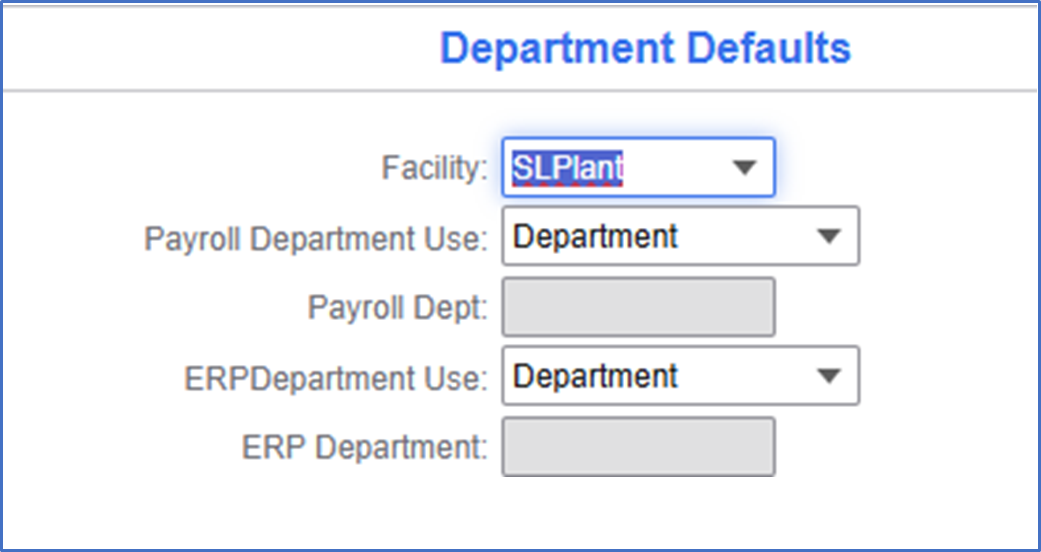
- Access the Department Defaults form.
- Specify this information:
-
Facility
-
Set this value to SLPlant.
-
Payroll Department Use
-
Set this value to Department.
-
ERPDepartment Use
-
Set this value to Department.
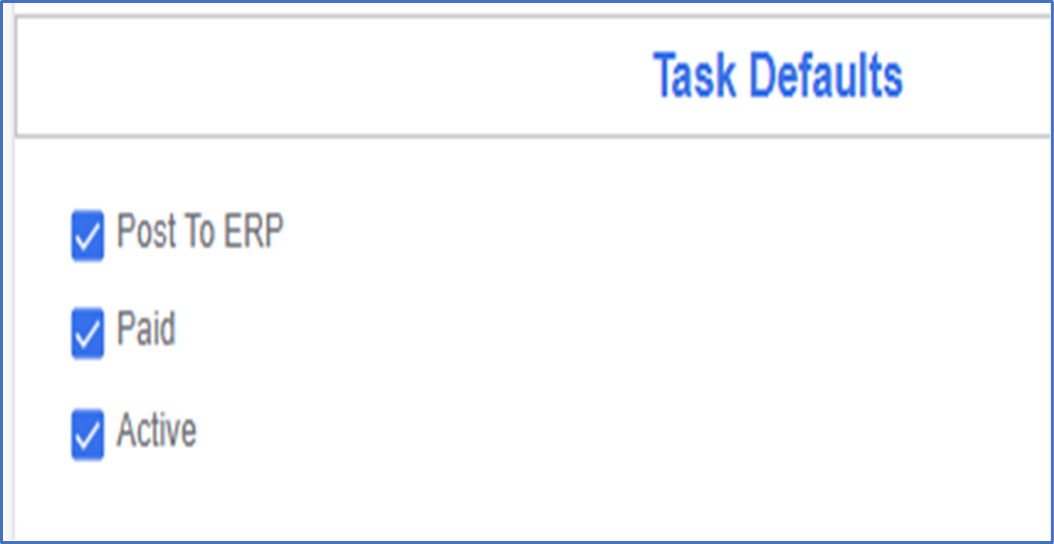
- Access the Task Defaults form.
- Select the Post to ERP check box to post the data to ERP.
- Select the Paid check box.
- Select the Active check box to activate the task.