Configuring an employee using the new Shop Floor
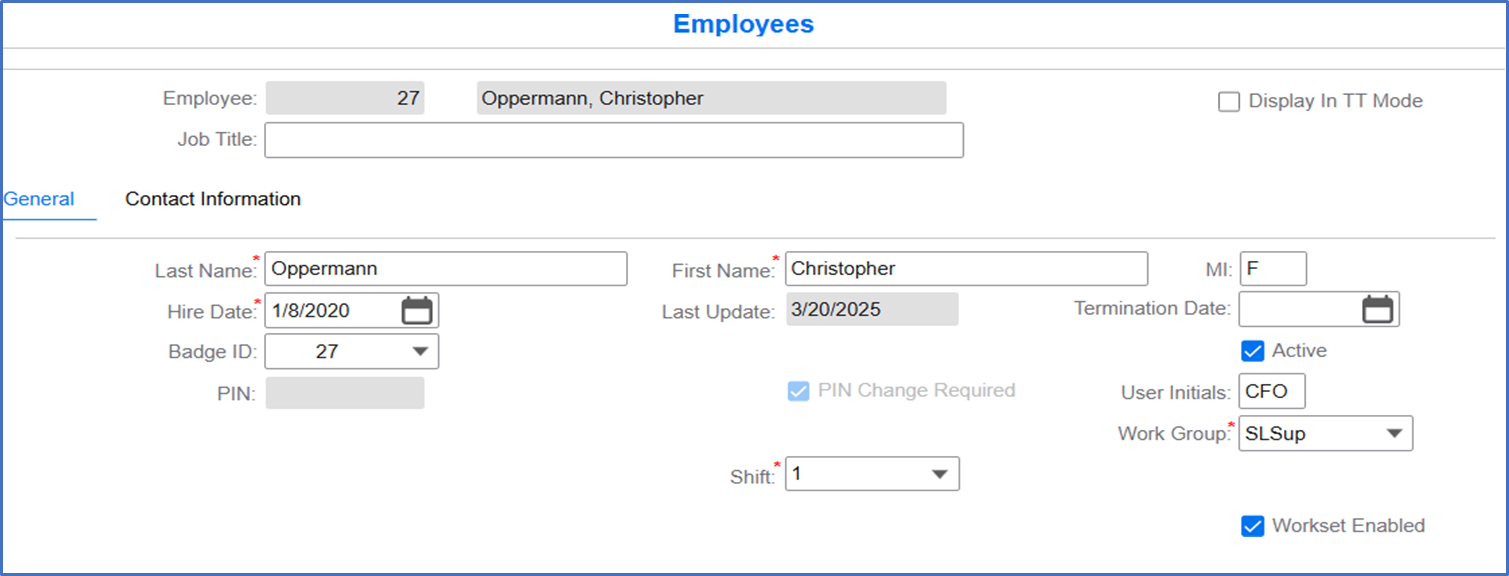
- Specify this information on the General tab:
- Last Name
- The last name of the employee.
- First Name
- The first name of the employee.
- Hire Date
- The date on which the employee is hired.
- Badge ID
- The identification number of the employee.
- Last Update
- The date on which the employee data is last updated.
- Pin Change Required
-
Select this check box to change the pin after registration.
Note: This check box is automatically selected and cannot be modified.
- Shift
- The code of the shift for the employee.
- Active
- Select this check box to activate the employee.
- User Initials
- The initials for the user.
- Work Group
- The code of the work group to which the employee is assigned.
- Workset Enabled
-
Select this check box to enable workset for the employee.
Note: This check box must be selected for employees using the new shop floor.
- Access the Shifts form.
