Group Accountant Custom
Restricted permissions to certain groups, subgroups, and their correspondent entities
This diagram shows an example of an ownership structure with one top group and three subgroups:
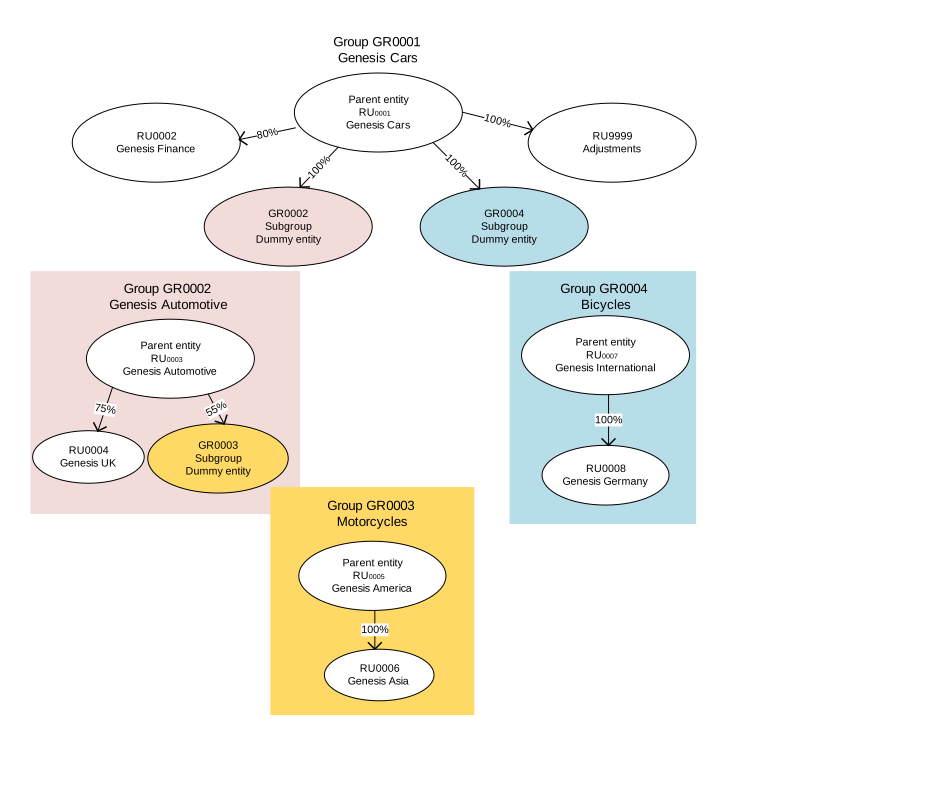
The parent entities own or control dummy entities that represent subgroups. The diagram shows these relationships between entities:
- RU0001 owns 80% of RU0002, 100% of GR0002 subgroup dummy entity, 100% of GR0004 subgroup dummy entity, and 100% of RU9999.
- RU0003 owns 75% of RU0004 and 55% of GR0003 subgroup dummy entity.
- RU0007 owns 100% of RU0008.
- RU0005 owns 100% of RU0006.
If a group accountant is responsible only for group GR0004, then they can see only group GR0004 and the entities that belong to that group, RU0007 and RU0008. Because the results of group GR0004 are transferred to group GR0001 and are represented by the GR0004 Subgroup Dummy entity, the user must have Read and Write permissions for that dummy entity.
To enable the user to access the GR0004 Subgroup Dummy entity, the administrator must perform these tasks:
- Select .
- In the roles panel, click the OLAP Data Roles tab.
- In the Application field, select .
- To create an individual group accountant data role to access the GR0004 Subgroup Dummy entity, for example, GrAcc_GR0004_SG, click .
- In the Create OLAP Data Role dialog box, specify the role name and, optionally, its description, and click .
- In the Users panel, create or select a user, and click the user-related icon.
- Assign the data role and the Group Accountant Custom application role to the user.
For the data role, you must manually set up permissions to specific groups and entities. For each user with restricted access to a group or subgroup, an individual custom role must be created.
Permissions to specific groups and entities
To set permissions to specific groups and entities, follow these steps:
- Select .
- In the Data Source field, select DEPMAPPS - EPM.
- In the Access Cube field, select these access cubes:
- Entity Permissions
- Group Permissions
- Mirrored Entity Permissions
- For each access cube that you selected in step 3, enable the required permissions for the data role.
Entity Permissions
Before you modify permissions, review the default permission setting for the DEPMAPPS database. To view the setting, select . In the Databases panel, select the DEPMAPPS database. The setting is specified in the widget.
For the data role, set these entity permissions:
- Read permission for the Group Entities node. Used in a Group Audit Trail Report to analyze all group entities.
- Write permission for those entities under Group Entities that the user must have access to. In the example from the diagram, these are RU0007, RU0008 and GR0004 Subgroup Dummy entity. All other entities under Group Entities must have the No Access permission.
- No Access permission for the All Entities node and all entities underneath.
- Write permission for the group for which the user is responsible. In the example from the diagram, it is group GR0004.
- Write permission for the Global element. Used to write required information on the Group Parameter page and to the TPART cube.
Group Permissions
For the individual group accountant custom role, set these group permissions:
- Write permission for the Global element to enable calculating ownership and maintaining standard rates and cash flow parameters. If multiple group accountants exist and are responsible for multiple groups or subgroups, then only the top group accountant can perform those tasks. Otherwise, conflicts can occur.
- Write permission for the groups for which the user is responsible. In the example from the diagram, it is group GR0004. Other groups must have the No Access permission assigned.
Mirrored Entity Permissions
For the data role, set the No Access permission for the Sum node and all entities under it except for those entities which the user is responsible for. In the example from the diagram, these are RU0007, RU0008 and GR0004 Subgroup Dummy entity. Those entities must receive the Read permission to enable intercompany reconciliation to work correctly.
Restricted permissions on segments
Sometimes, group accountants must have restricted permissions on segments. By default, the segment dimensions are not restricted for access rights.
- Select and select DEPMAPPS.
Segment 1 usually drives the business and permissions can be set up accordingly.
If you set up three segments in Business Modeling, then you can define that either Segment 1 is controlled by permissions, or Segment 1 and 2, or Segment 1, 2, and 3.
- Find the DPSEGM (primary segment) dimension and click .
- In the Security section, switch on .
- Click and create a cube. For example, #DPSEGM.
- Select and select DEPMAPPS - EPM as the data source and Cube Permissions as the access cube.
- Assign the Write permission to the created access cube to the group accountant custom data role.