Machine learning endpoints
The ML Endpoints Overview page displays endpoints that have been created from your models. It shows the name, description, status, and last update of the endpoints.
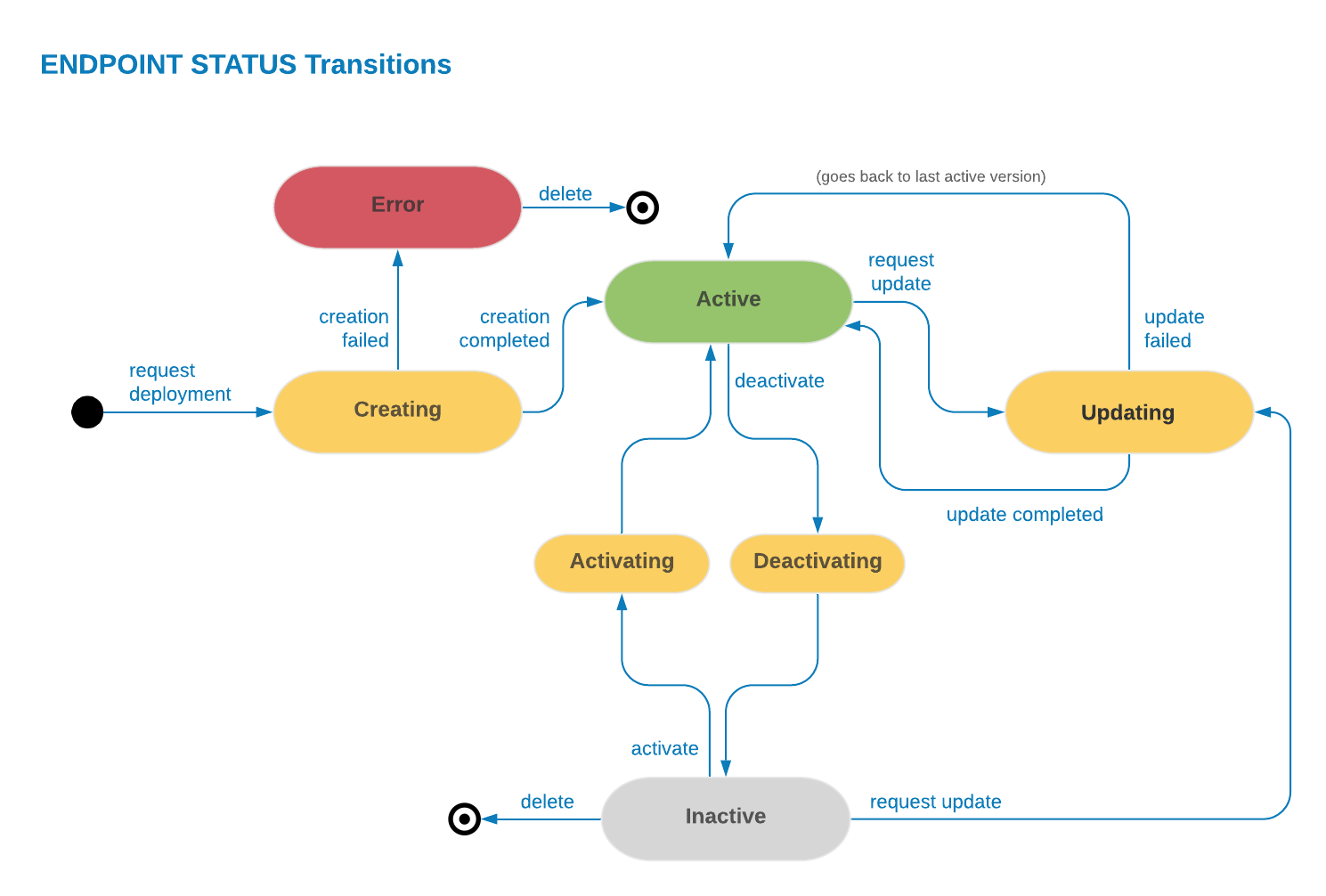
You can select an machine learning endpoint from the list to activate, deactivate, or delete. You must deactivate an endpoint before you can delete it. Additionally, you can select an endpoint from the overview page and update the description.
The name of the quest from which the endpoint has been generated is displayed and you can drill down into the quest.
Click to download the schema for the endpoint in JSON format.
Machine learning endpoint history logs
Select the second tab under to view the endpoint history logs. This information is displayed:
- Last Updated by username
- Last Updated on date and time
- Event Description: when the endpoint was created, activated or deactivated
Machine learning endpoint status
When you deploy an endpoint, the endpoint status is Creating. When creation is successfully completed, the status is changed to Active. If there is a failure, the status is Error.
When you update an endpoint from the real-time production quest, the status is Updating. The last Active version of that endpoint is still active while update is in progress, until it is finally replaced with the newly created one.
When you deactivate or activate an endpoint, the status is Deactivating or Activating state until it is changed to Inactive or Active.
While an endpoint is Active, you cannot delete the quest from which it has been generated. You must deactivate the endpoint first.