Column selectors in Classic Designer reports allow business users to modify a default report by selecting a different combination of attributes and measures. You can design a report so that dashboard users can make selections from a list that changes the information in the report, for example, to view sales by year, by category type, or by region. This enables the dashboard user to perform simple ad-hoc analysis.
Any attribute or measure can be assigned additional columns for selection in a dashboard.
The columns in a column selector can also contain expressions.
To specify columns from which dashboard users can select
- In Designer, open the report.
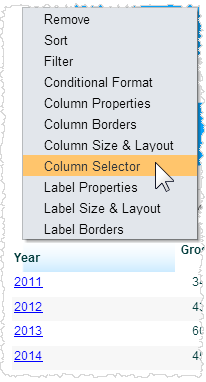
- Click on a
column header in the table and select Column Selector from the menu.
The Column Selector dialog box opens with the name of the column at the top.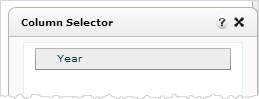
- Drag and drop
attributes or measures from the Subject Area to the Column Selector dialog
box to add those as selections for Dashboard users.
Important: Do not add measures to a column selector for an attribute and do not add attributes to a column selector for a measure.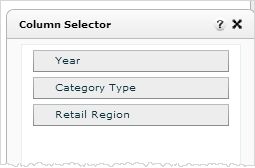
- Optional: Change the label or expression for the column selector columns.
Tip: You cannot change the properties for the first column in the Column Selector dialog box (the column you first selected in the table). To change the column label for this column, click the column header in the report table and select Label Properties. To change the expression, click the column header in the report table and select Column Properties.- To change
the label for a column or change the expression for a column, click on the
name then select Properties.
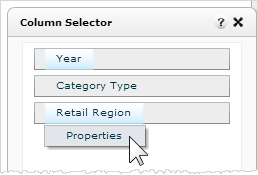
- In the Column Selector Properties window, type a new name to use in the Label field
or modify the expression to use and click Save.
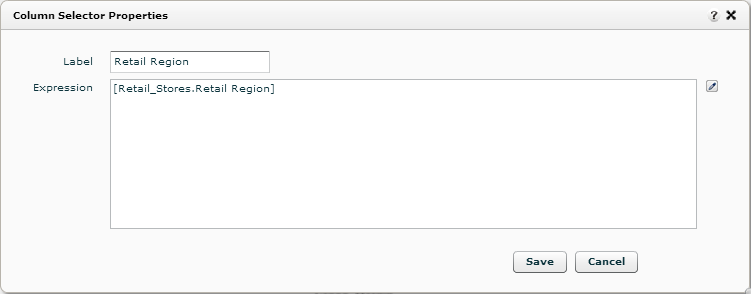
Tip: Click the Expression Builder icon to use the Designer Expression Builder to build your expression.
- To change
the label for a column or change the expression for a column, click on the
name then select Properties.
- Click Save.
- Click Report- Save to save the changes to the report.
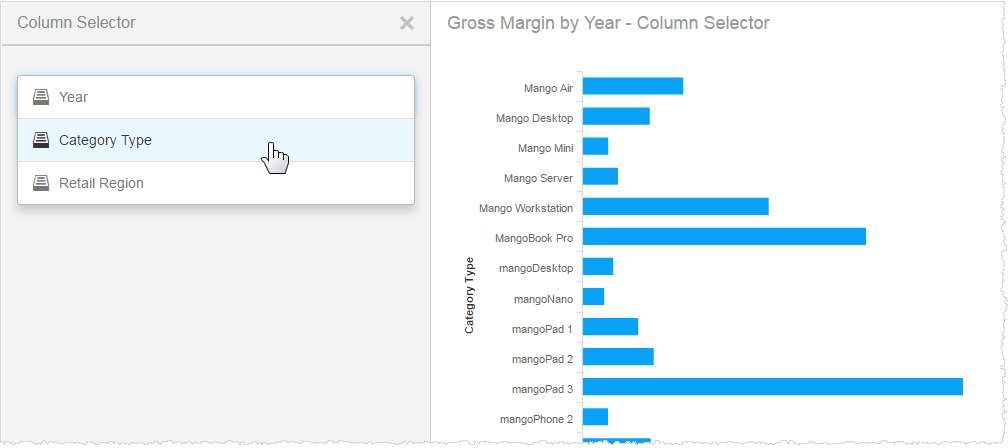
- When you add the report to a dashboard, business users see a list of columns from which to choose. Selecting a column changes the information presented in the report or chart.
Column Selectors and Dashboards 2.0
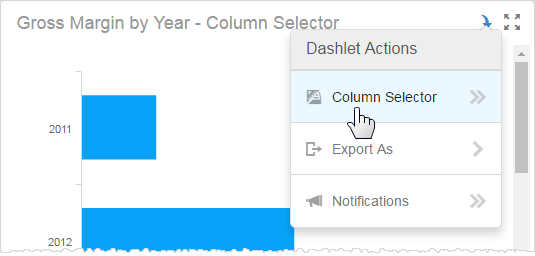
In Dashboards 2.0, column selectors are available to users from the Dashlet Actions menu as either Attribute Selectors or Measure Selectors. You do not have to set any special configurations in Dashboards 2.0 in order for the column selectors to operate.
Column Selectors and Original Dashboards
Important: Column Selectors must be enabled in the Dashlet Properties for a dashlet in order for Original Dashboard users to see this feature.