Filtering data in Visualizer
Use the Filters bucket in the Chart Builder to filter the data in one of these ways:
- Drag and drop a measure or attribute from the Subject Area onto the Filters bucket.
- Filter on measures and attributes that have already been added to the report, as described in this section.
- Visually filter a report by dragging a capture rectangle around attribute values in the chart.
Note: When starting a new report, add a measure or attribute to the Filters bucket first and configure the filter before adding the measures and attributes. The filter will be applied to any measures and attributes that you subsequently add.
Caution: Set-based filters (BQL IN, NOT IN) are not supported in Visualizer.
Numeric attribute filters control how numeric values display and how search results are ordered in Visualizer filters.
Numeric attribute filters, such as Integer, Float, and Double, display values in ascending order (ASC). Smaller numeric values appear first to maintain a consistent numeric order in the Filters bucket and filter editors.
When users search for numeric values, the results prioritize smaller and exact matches within the visible result set. This ordering improves value discovery and provides a predictable search experience when filtering data in Visualizer.
To filter data in a report:
- Select the filter operator. You can:
- Select values from the list and use the operators to specify a filter set.
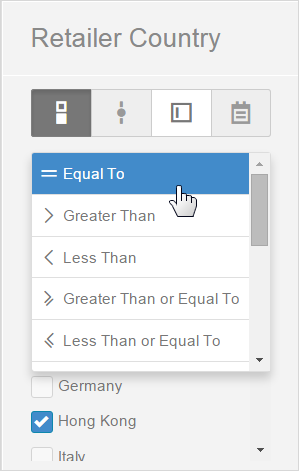
- If there is a long list of filters, use the Search field to quickly find the ones you need.
- For long lists, use the button.
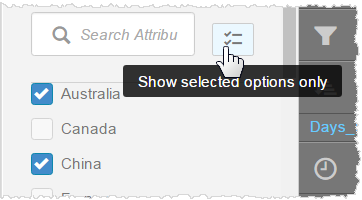
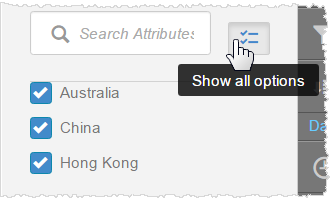
Click it again to see and scroll the first 100 options.
.
- If you want the filter to apply against the query result set in memory, select the option. By default, this setting is off and the filter operation is carried out at the data source.
- Select values from the list and use the operators to specify a filter set.
- Select the Filter bucket to see the current filter.
Note: Additional features:
- You can switch the filter on and off using the toggle switch In a dashboard. When a filter is switched off, it maintains its state, but it is not applied to the dashboard.
- To change the filter condition, click on the filter name in the Filters bucket.
- A report can have multiple filters.
- A filter column does not have to be in the Category bucket; it does not have to show in the report.
- If you want to filter on a column you are already using in your chart, you can drag the column from its current bucket to the Filters bucket. Visualizer does not remove it from the current bucket and adds it to the Filters bucket.
- You can remove the filter by clicking the icon.
- You can use a Visualizer report expression as a filter by dragging and dropping it to the Filters bucket. However, you cannot filter the data in a report using a saved expression created in Designer.
- To filter on date type attributes, use the range (between)

condition and the date picker. - Text-based value filters can have multiple values separated by a delimiter. Select the Allow Multiple Values option, and specify the values and what delimiter to use.