Using Latitude and Longitude in Geomaps
If you have latitude and longitude data that you want to use in Geomaps, you can create a custom GeoAttribute for it.
For example, you have two attributes, one with latitude data and one with longitude. You create a custom attribute based on an expression that concatenates the data. The new attribute can be used with a Geomap to precisely locate an entity, such as a store and warehouse.
The built-in Visualizer Geomaps support this syntax for latitude and longitude:
(LatitudeAttribute, LongitudeAttribute)
If you have an attribute that is already in this format, you can use it with a built-in map. If you have separate attributes, use the Expression Builder to concatenate them.
To create a custom GeoAttribute for latitude/longitude, complete these steps:
- In Visualizer, click Expression Editor (the brackets icon).
- In the Expression Builder editor, name it and click the Attribute option.
- Specify the expression to concatenate the base attributes. For example, in Basic mode:
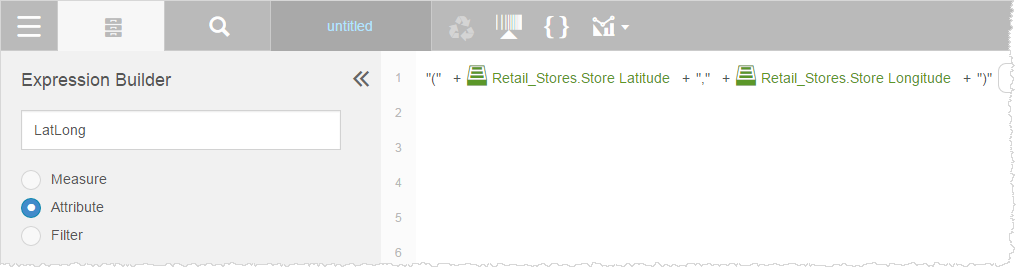
In Advanced mode:(((('(' + [Retail_Stores.Store Latitude]) + ',') + [Retail_Stores.Store Longitude]) + ')') - Click Save. The expression is listed in the Attributes list.
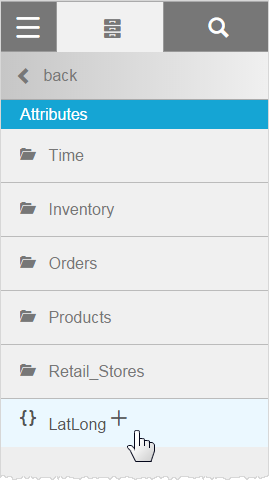
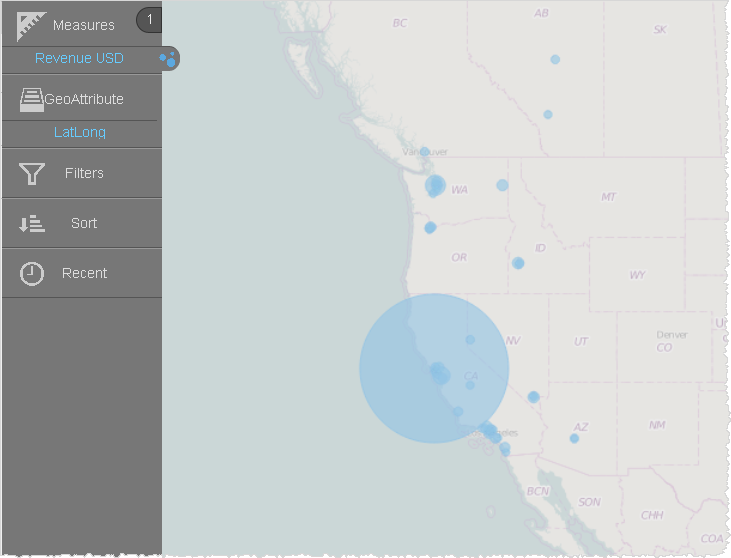
- Use the new expression as the GeoAttribute. For example, on a bubble map.
- Alternatively, you could choose a marker layer type.
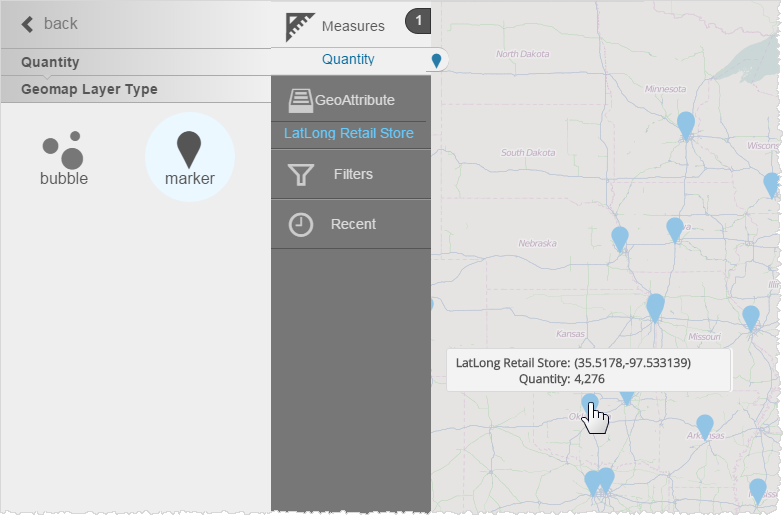
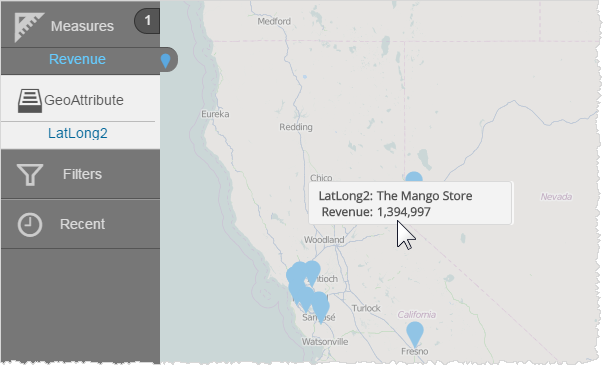
In a marker-style map, do not display latitude and longitude in the tooltip. Instead, display a descriptive value, such as the location name or store name.
To change the display tooltip for a marker, complete these steps:
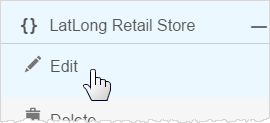
- In the Subject Area Attributes list, select the expression and click Edit.
- In the Expression Builder, add the Store_Name attribute and a pipe. The pipe will substitute the value of Store_Name in the tooltip. For example in Basic mode:

or in Advanced mode:((((([Retail_Stores.Store_Name] + '|(' + [Retail_Stores.Store Latitude]) + ',') + [Retail_Stores.Store Longitude]) + ')')) - Save the expression, or save it under a different name.
- Add it as a GeoAttribute in the Chart Builder. The expression evaluates as the Store Name in the tooltip.