Adding a custom map

  1. Prepare your data:
    • Attribute: Location name or coordinates
    • Measure: Numeric value, for example shipment count
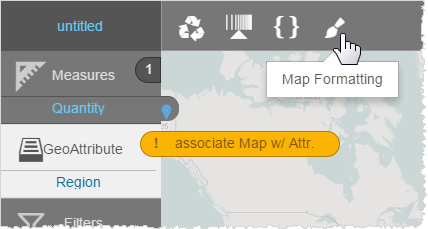
  2. Create a report of type Geomap and add a measure and attribute. For example, Quantity by Region.
    Note: If there is no map associated with the attribute, Visualizer displays a warning message. This message disappears when you upload the KML file and associate the custom map with the attribute.
  3. Save the KML file.
    Add one <Placemark> per location. Verify the coordinates format: longitude and latitude.
    Note: The maximum size of KML is 20 MB.
  4. Click Map Formatting.


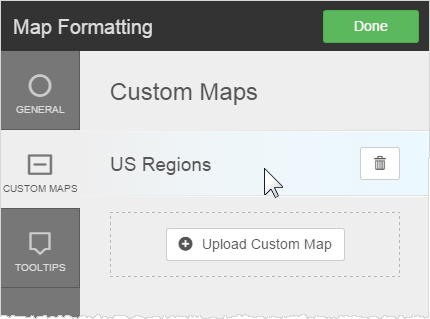
  5. Click Custom Maps.
  6. Click Upload Custom Map.
  7. Upload the KML file:
    • Select Admin > Settings > Map Layers
    • Click Add Layer and upload your .kml file.

    Visualizer uploads the map file and adds it to the Custom Maps list.


    Note: We recommend that you include the descriptive names for tooltips.
  8. Click Done.