Color Palette and advanced color assignment options
Charts show only the colors that are defined in the selected palette.
This image shows the advanced Color Palette:
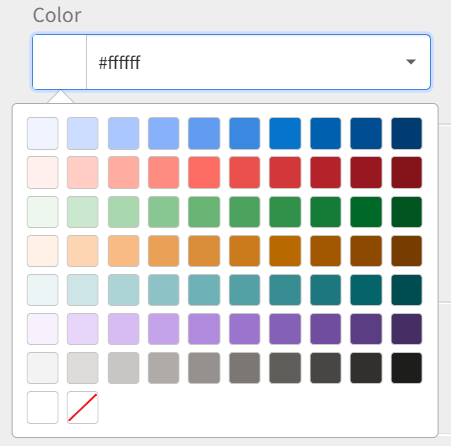
To use color assignment rules, click and click (the brush icon). Select or Global.
Extend Color Palette
The mode generates additional, visually distinct colors when the selected palette lacks enough colors for all chart items. This ensures that each chart item is assigned a unique color, even in charts with many categories.
Example:
Selected palette: Blue, Red, Green (3 colors)
Chart categories: A, B, C, D, E, F (6 categories)
Color assignment:
A: Blue
B: Red
C: Green
D: Orange
E: Purple
F: Yellow
Repeat Color Palette
With the mode, you can assign palette colors in a continuous cycle in which no new colors are generated. After the last color is used, the assignment restarts from the first color.
Example:
Selected palette: Blue, Red, Green (3 colors)
Chart categories: A, B, C, D, E, F (6 categories)
Color assignment:
A: Blue
B: Red
C: Green
D: Blue
E: Red
F: Green
Distribute Color Palette
The mode evenly applies the available palette colors across all chart items. Each color is applied to a group of items. This distribution supports balanced color usage when the number of items exceeds the palette. Colors are assigned in blocks rather than sequential repetition.
Example:
Selected palette: 10 colors
Chart items: 30
Assignment pattern that is continued until all 30 items are assigned a color:
Color 1: Items 1–3
Color 2: Items 4–6
Color 3: Items 7–9