Configuring S3 Data Sources
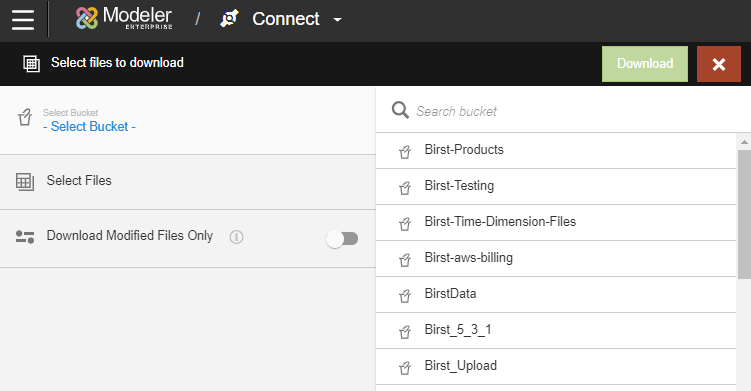
- Select a bucket from the list of available S3 buckets.
- After you select the bucket, select the files from the bucket you want to download.
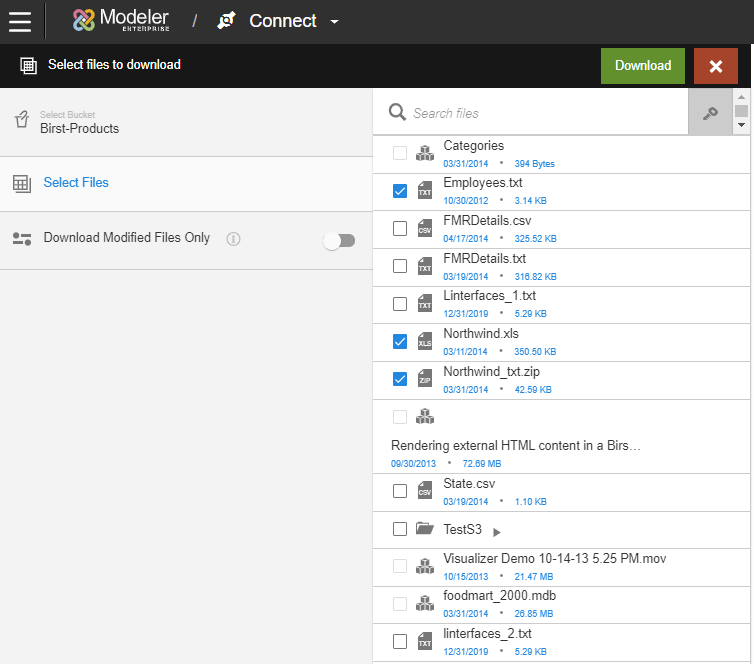
Note: Enable to download files that were modified since the last extraction. - If the files are encrypted using a custom S3 encryption key, you can add the encryption key to the files. To add an encryption key for multiple files:
- Select the files and click the icon next to the Search field. Optionally, click the icon next to a file to add an encryption key to a single file.
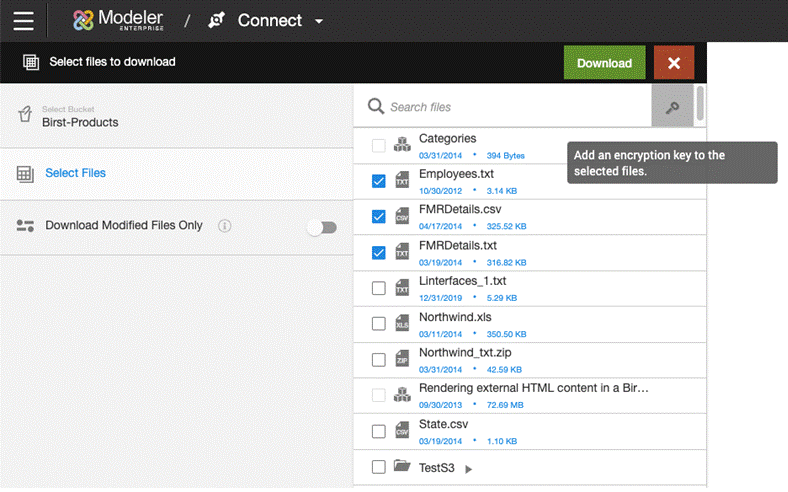
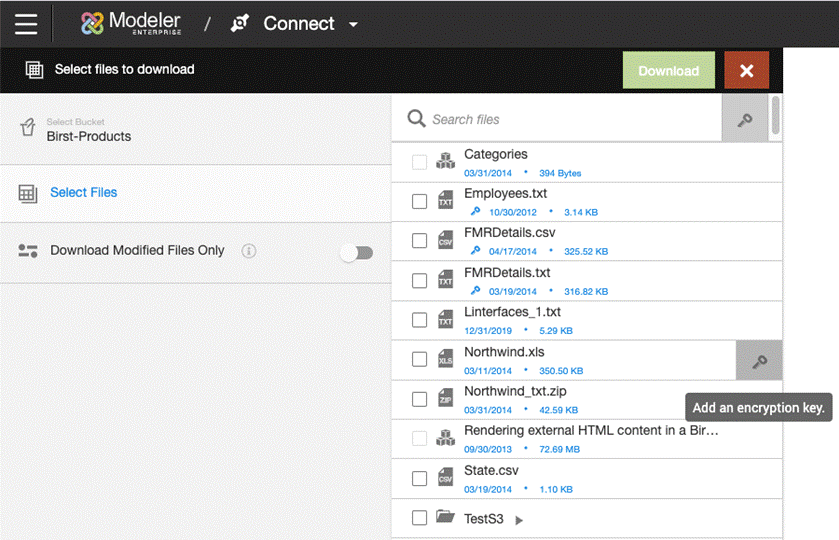
- Select the files and click the icon next to the Search field. Optionally, click the icon next to a file to add an encryption key to a single file.
- After downloading your files, you can use the button to extract your information.
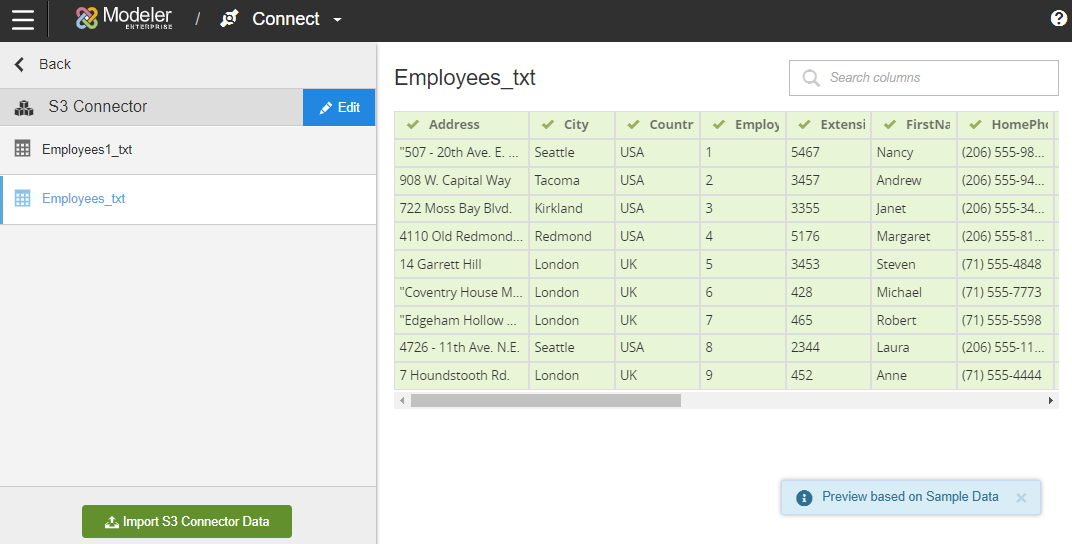
Note: You can sign out from Birst while extraction runs and sign in later.