Managing theme in Birst

When you access Birst through the Infor Mingle with default setting, the Mingle theme, including accent colors, is applied automatically to Birst, including dashboards.

When you use a custom theme, you can choose if you want to inherit Mingle theme for your dashboards, which gives you control over your personalized setting.

Note: The inherited theme is different from the default theme.

Enabling theme inheritance from Mingle

  1. Select User Profile > Themes.
  2. Enable the Theme Inheritance switch.
  3. Select the theme:
    • Light UI
    • Dark UI
    • High Contrast UI
    The system automatically applies the theme selected in Mingle across platform.
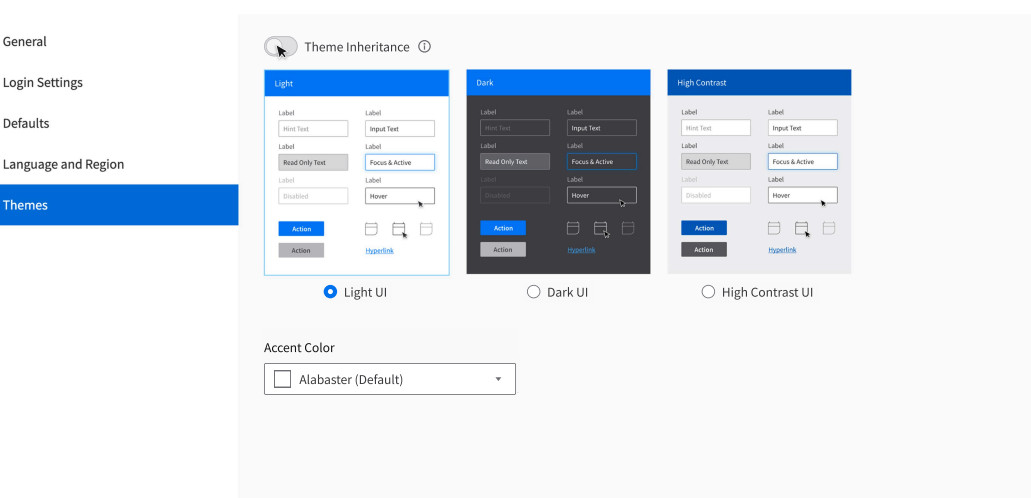
    themes

Disabling the theme inheritance from Mingle

  1. Select User Profile > Themes.
  2. Disable the Theme Inheritance switch.
    Behavior after disabling theme inheritance:
    • Default setting: Birst restores the previously selected state before theme inheritance, such as UI and Accent color, and the dashboard is reverted to the default theme.
    • Custom setting: Birst restores the previously selected state before theme inheritance, such as UI and Accent color, and the dashboard is reverted to the custom theme.