Dashlets style options
The dashlet style options are available when you select one or more dashlets. To select multiple dashlets, hold the Ctrl (PC) or Command (Mac) key and select the dashlets.
Caution: Color settings on a dashlet override the theme settings.
Note: In Infor Birst User and Administration Library, select to see how to match these colors with Visualizer color palettes.
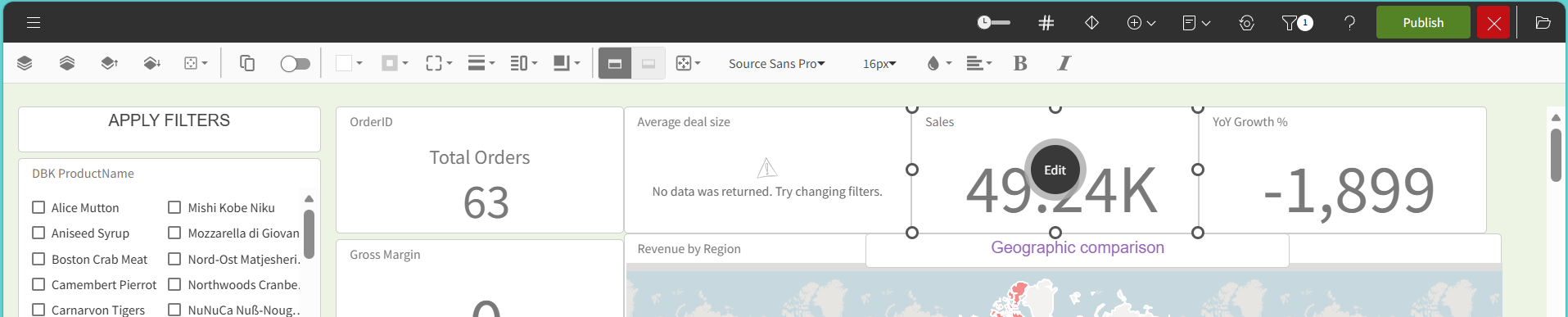
- In Edit mode, select a dashlet. The Edit Toolbar is displayed. Dashets provide access to the available options in the Edit Toolbar.
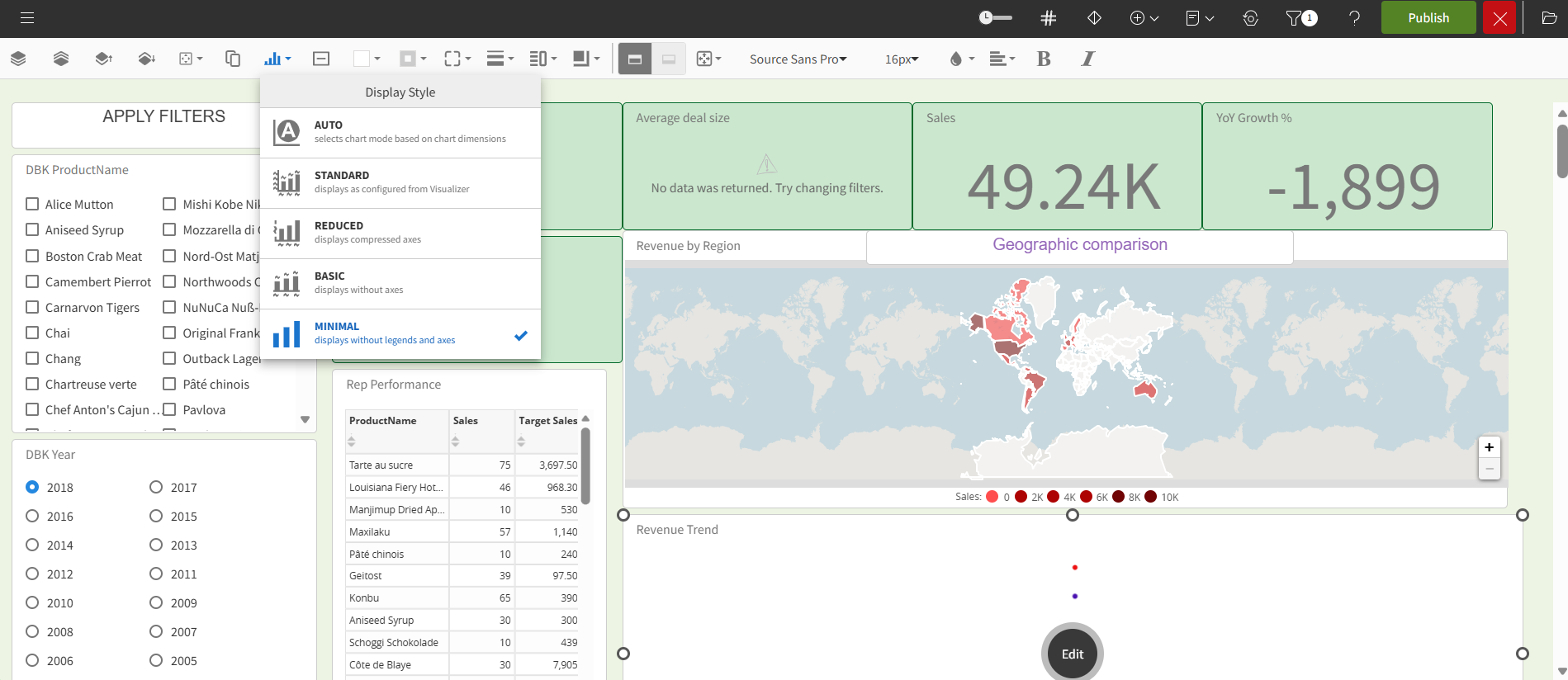
- Use to change the dashlet style.
Note: is available when you select a single dashlet.
Click the button to apply formatting to the normal state.
Click the button to apply formatting to the hover state of the dashlet.

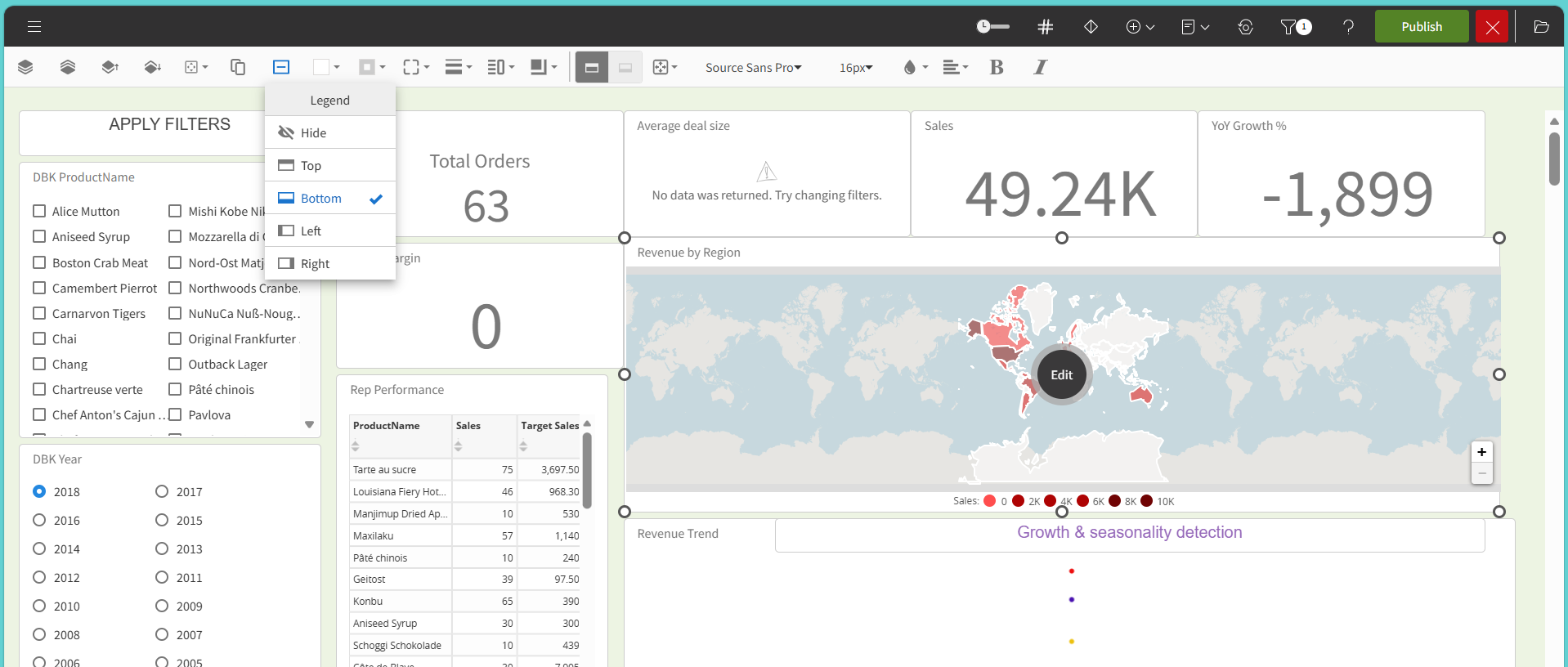
- Use to change the position of the dashlet legend.
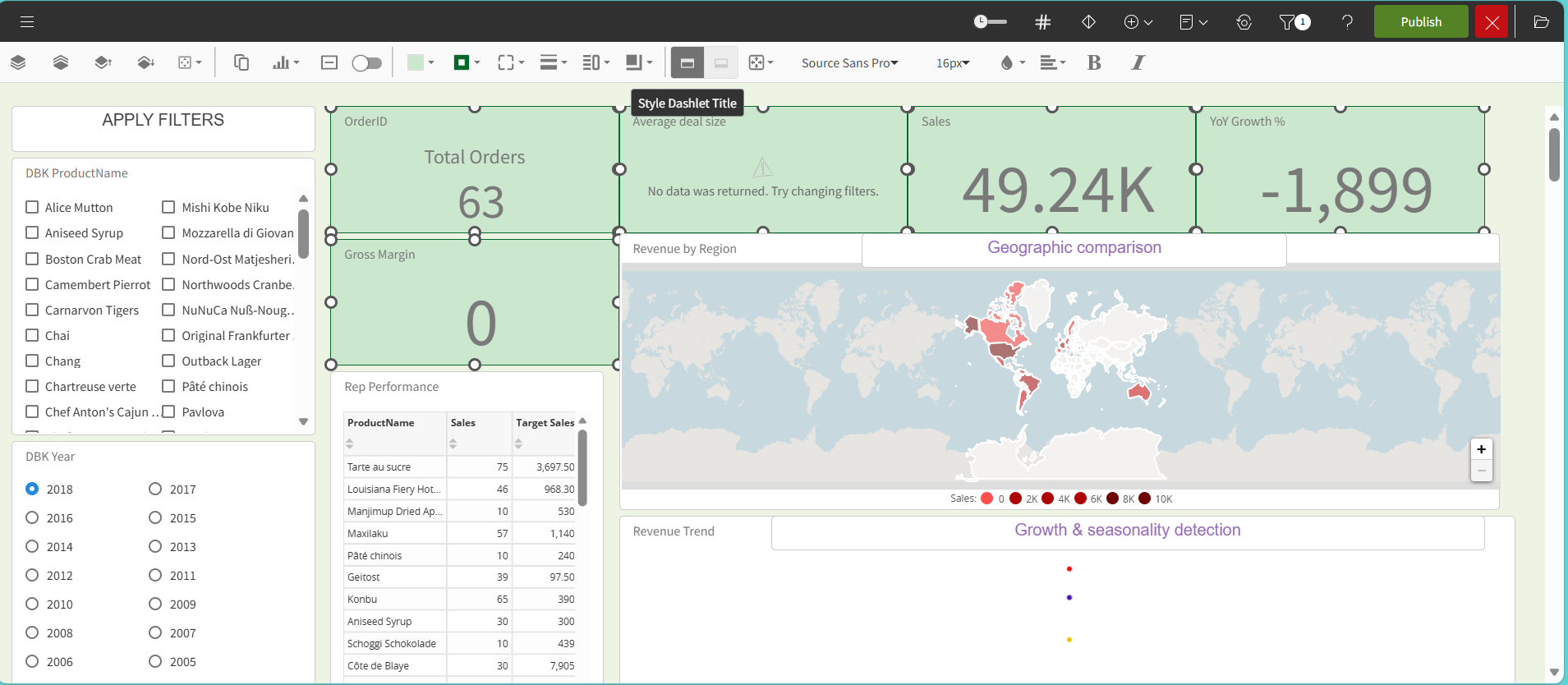
- To modify text in a dashlet, select or . Style Dashlet Body appears for embedded filters and it is not available for all dashlet types. You can set font size, color, style, and alignment.
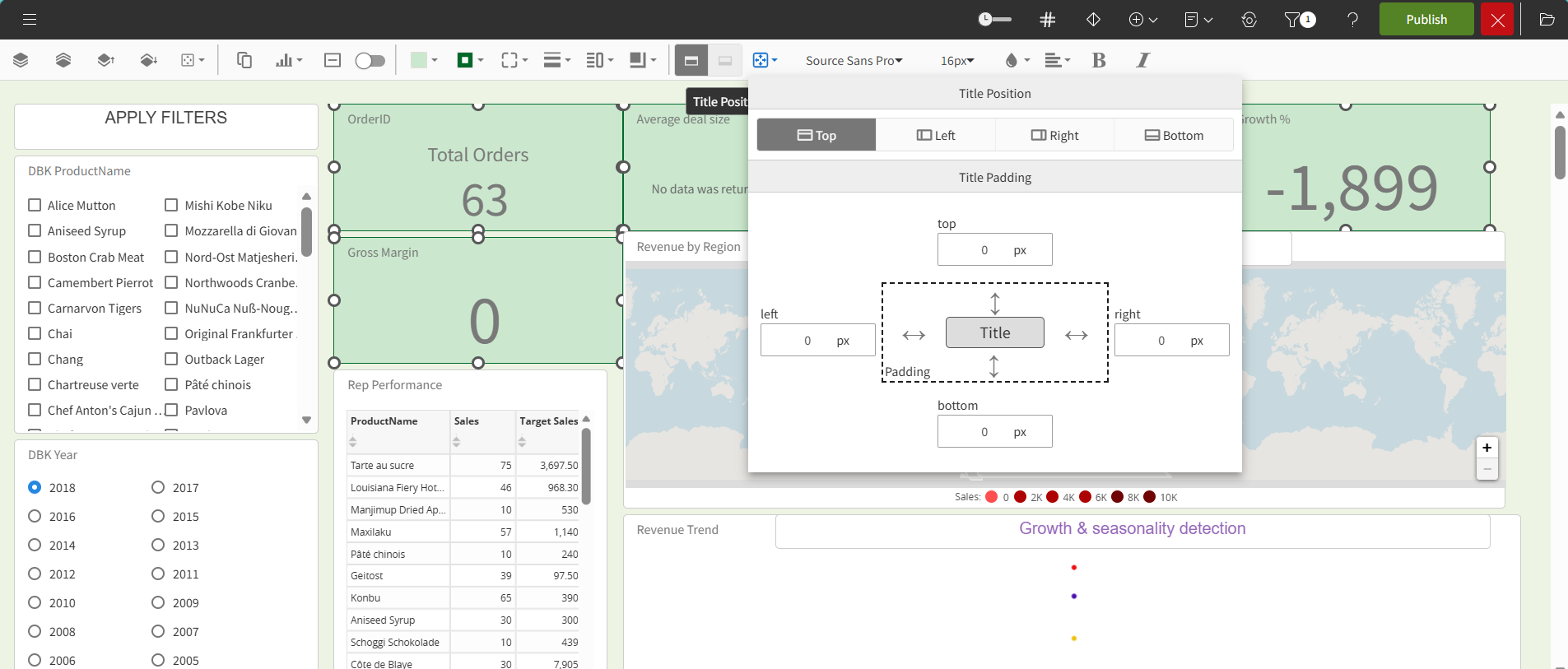
- If the Style Dashlet Title is selected, use the option to apply pixel padding for the dashlet title.
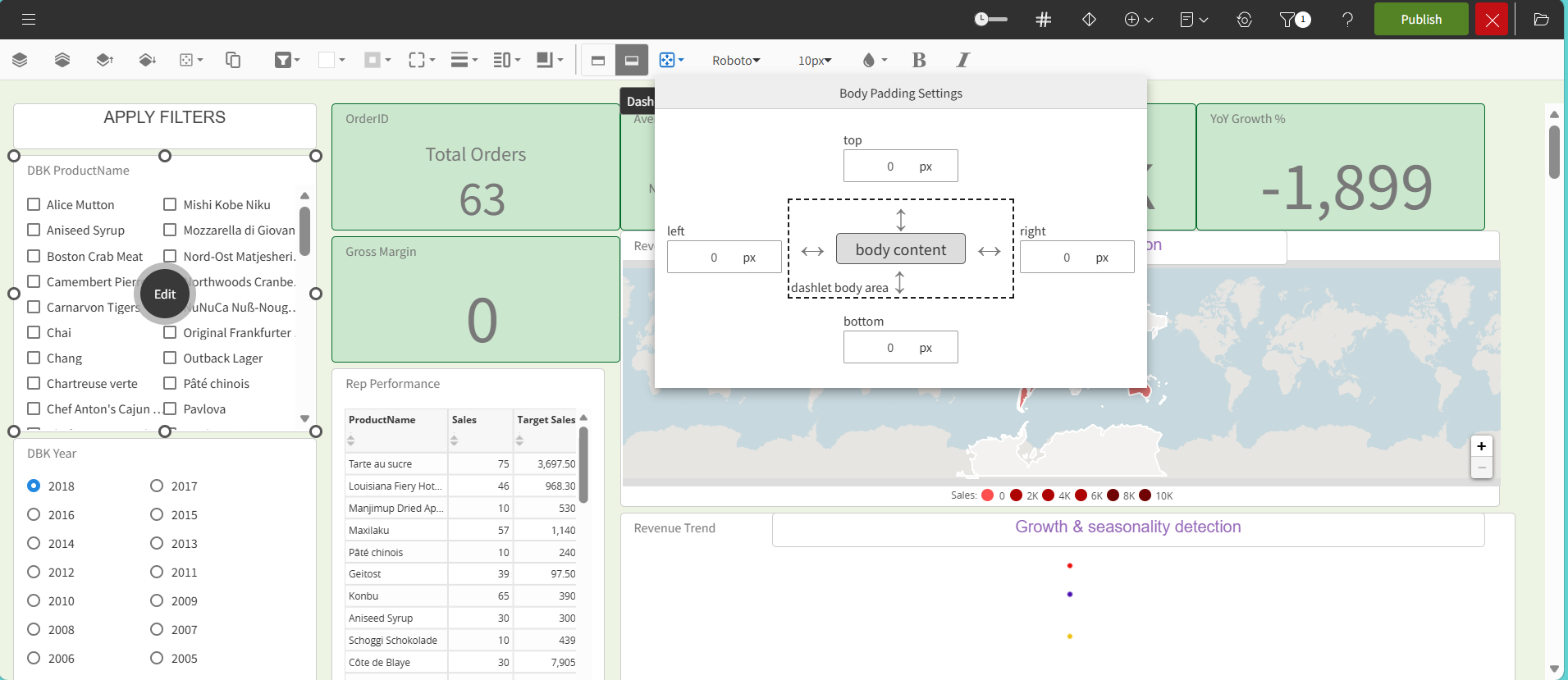
- If the Style Dashlet Body is selected for an embedded filter, use the Body Padding Settings option to apply pixel padding for the dashlet body.
- If the Style Dashlet Title is selected, use the option to apply pixel padding for the dashlet title.